¶ Subscribe in a community
This tutorial is about how to subscribe to a membership tier in a community.
Subscriptions is a great feature in the Galaxis community ecosystem. Community owners can define their own membership tiers, receive money (subscription fees) regularly, and in return, provide the community members with extra services and benefits.
Now, let us see step-by-step how a potential community member can acquire his/her membership in a community and further how he/she can benefit from subscriptions.
¶ Step 1
-
Open the Galaxis Communities website and choose a community to which you want to subscribe.
-
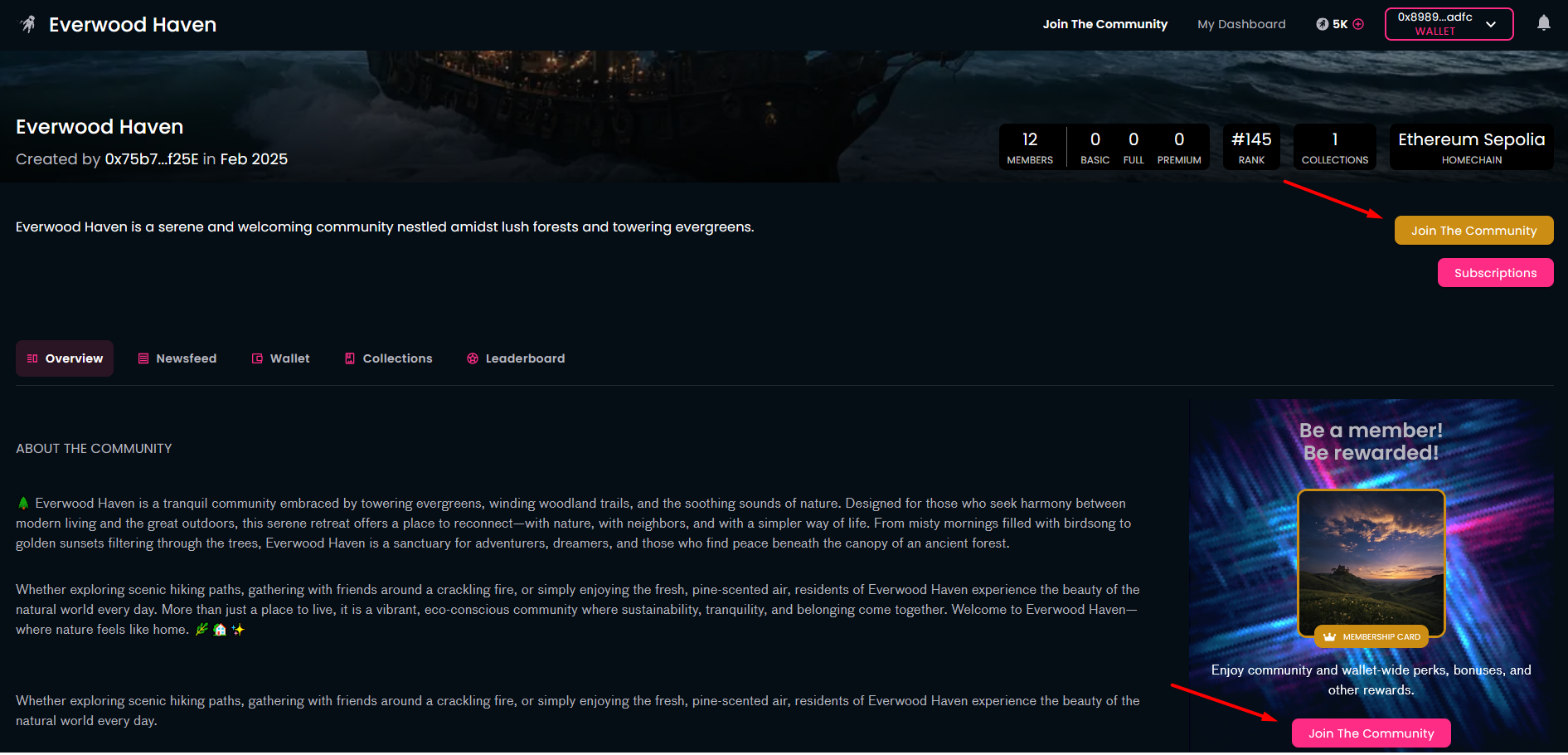
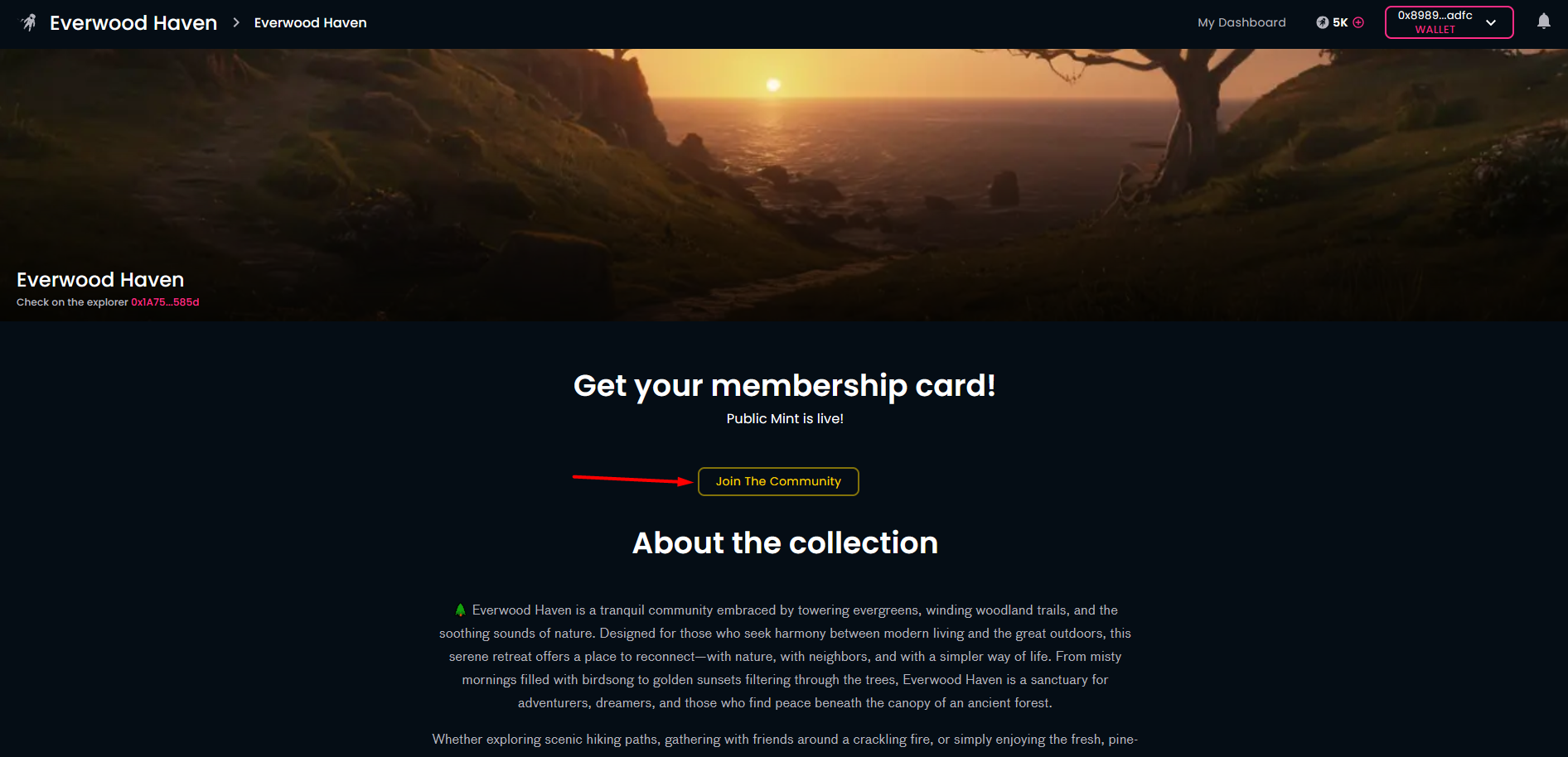
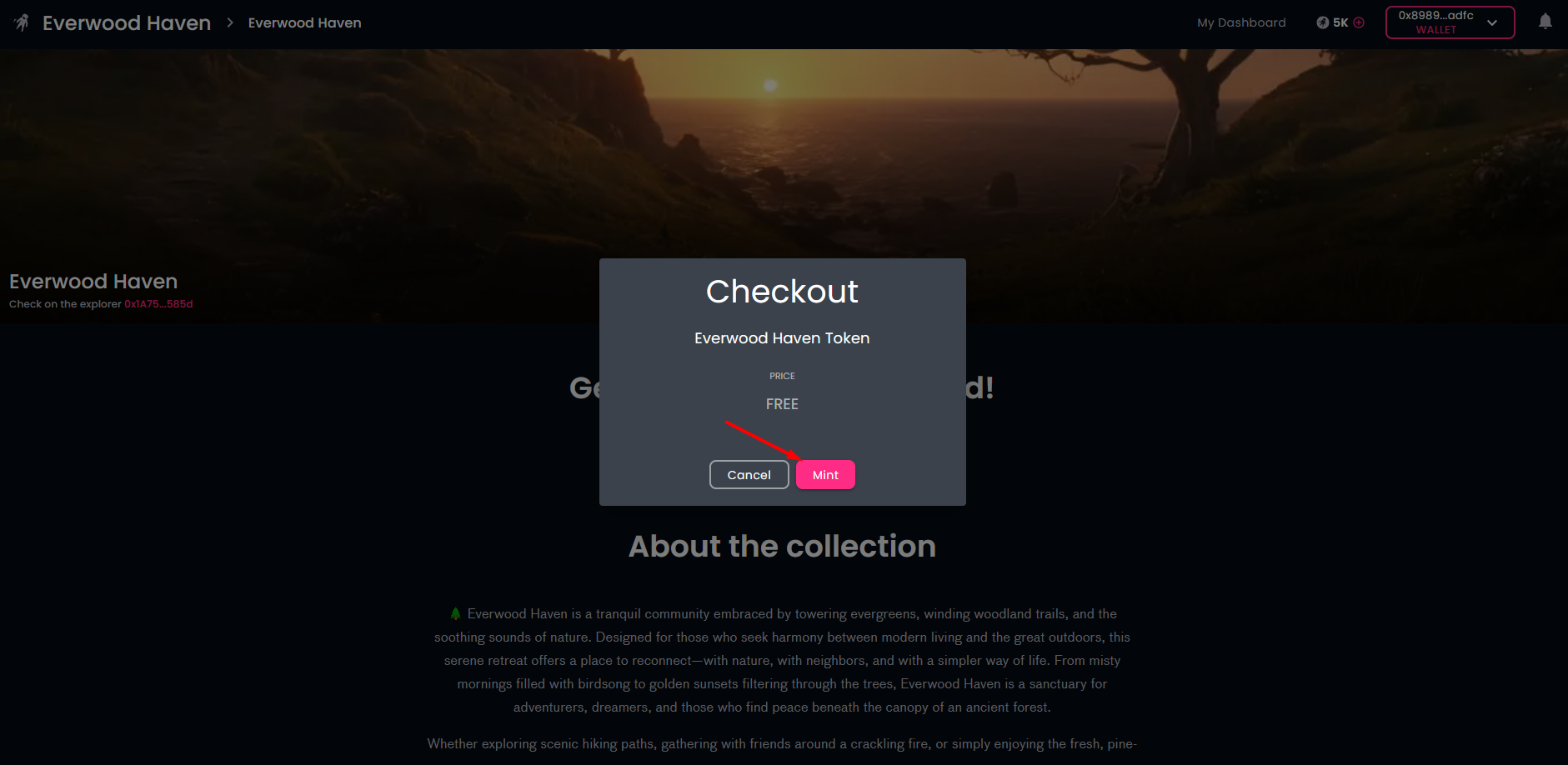
Before you can choose a specific subscription tier, you need to become a member in your selected community. If this is your first time with this community, click on the "Join The Community" button on the community page. This is the Web3 world: you'll need to connect your crypto wallet (if you had not done so before) and click on the "Mint" button to create ("mint") the token representing your membership, i.e., your membership card. Of course, you need to approve this transaction in your wallet.
-
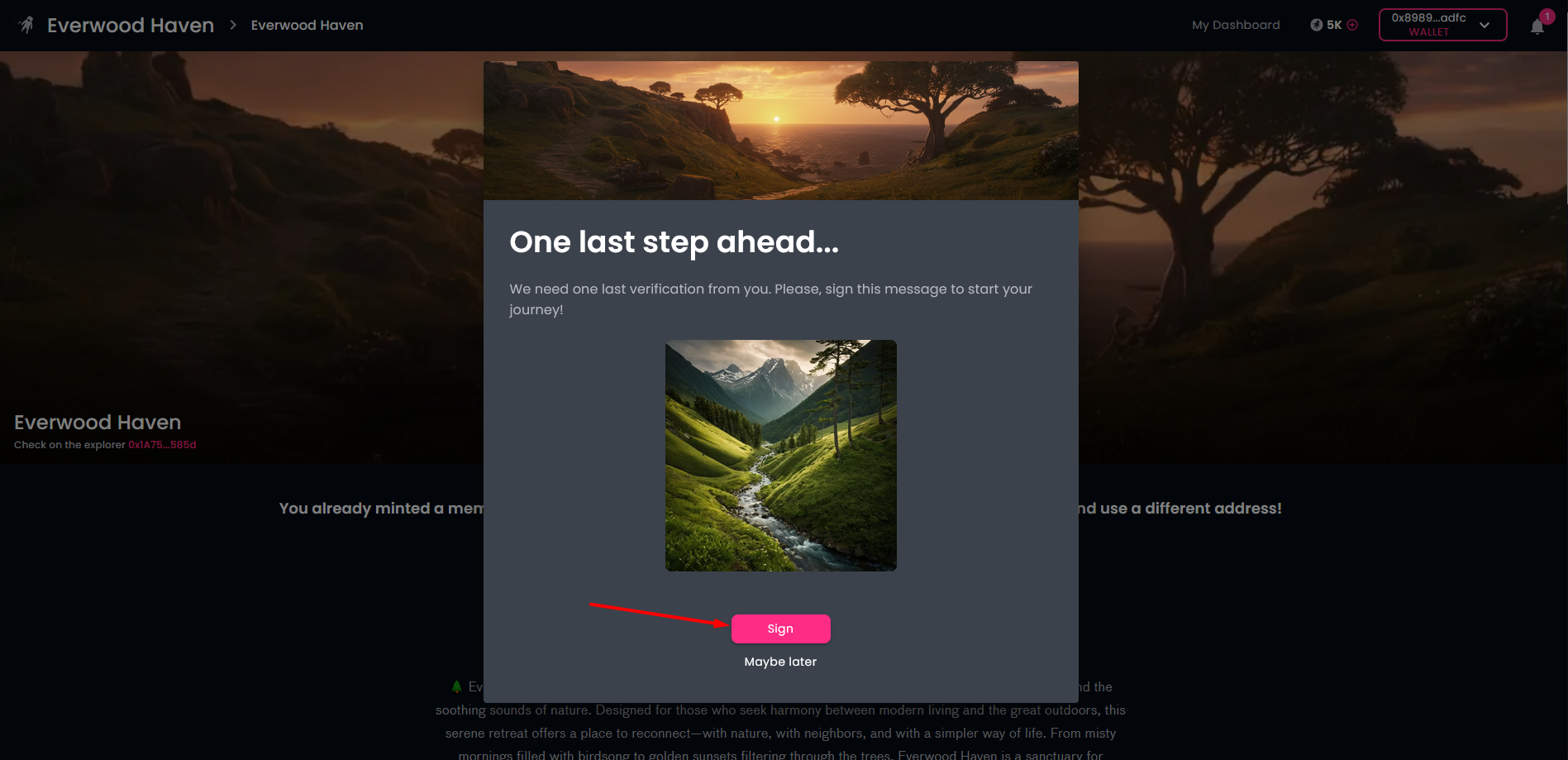
During the membership card minting process we ask you to sign an action. This step makes your membership card "primary". You can do that later, too, but as you must have a primary card to be an active member of the community, it is the best to do it right now. Please do not forget to approve the transaction is your wallet.
-
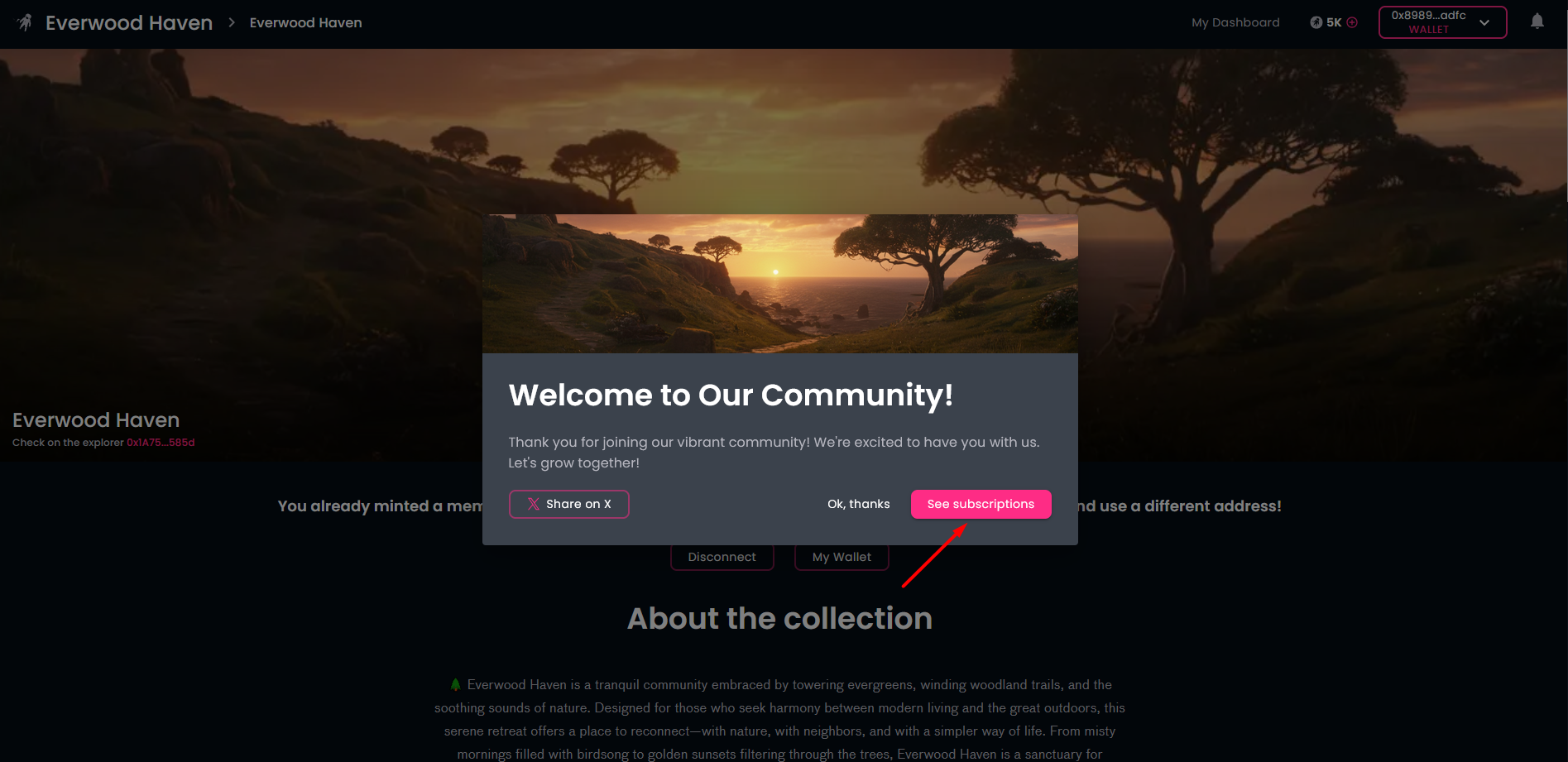
The the community greets you. You can post your freshly minted membership card on X using the button "Share on X". At this point, it is up to you if you continue immediately with the subscription or leave it to a later time.
¶ Step 2
-
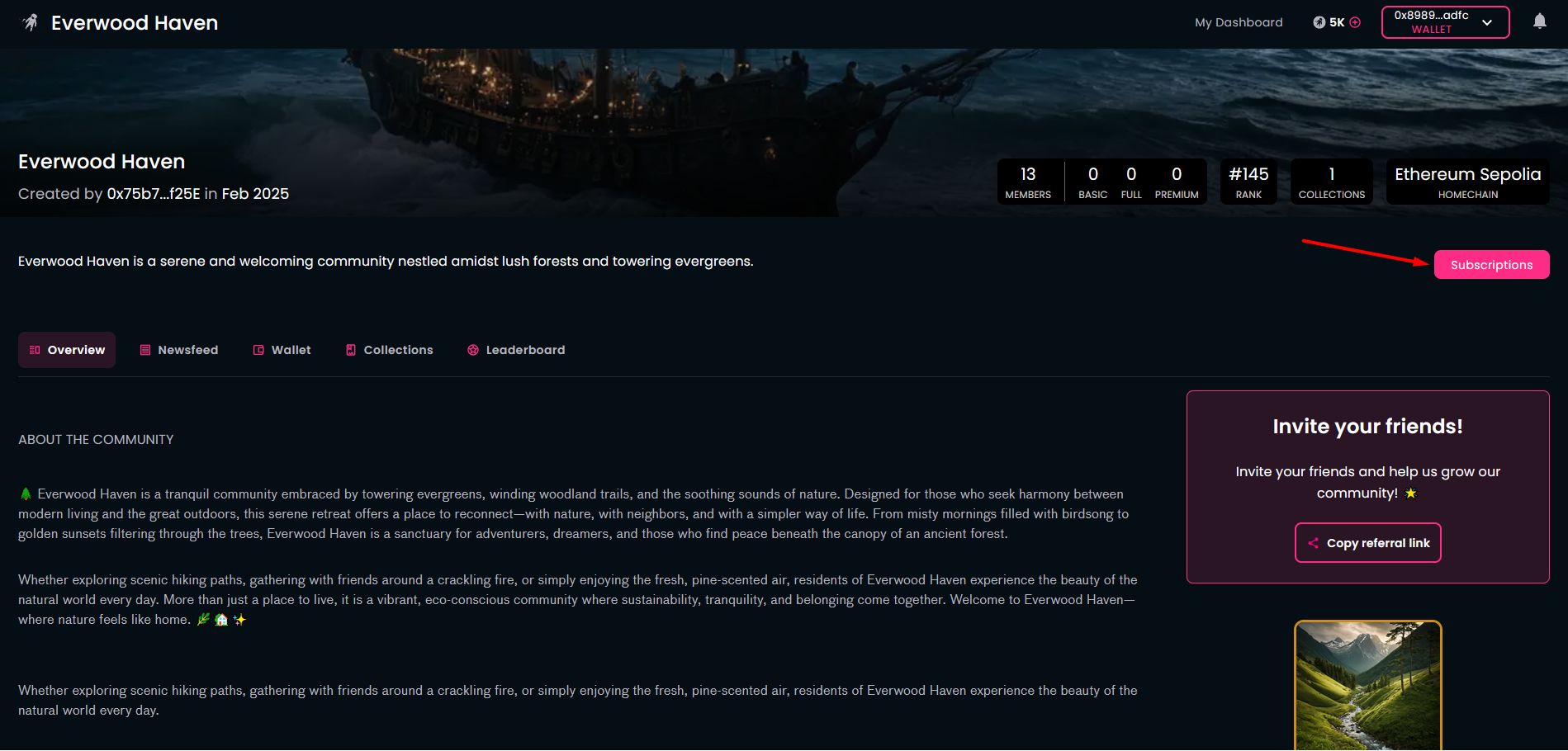
If you already possess a membership card and decide to subscribe, you can access the subscription opportunities by clicking on the "Subscriptions" button on the community home page.
-
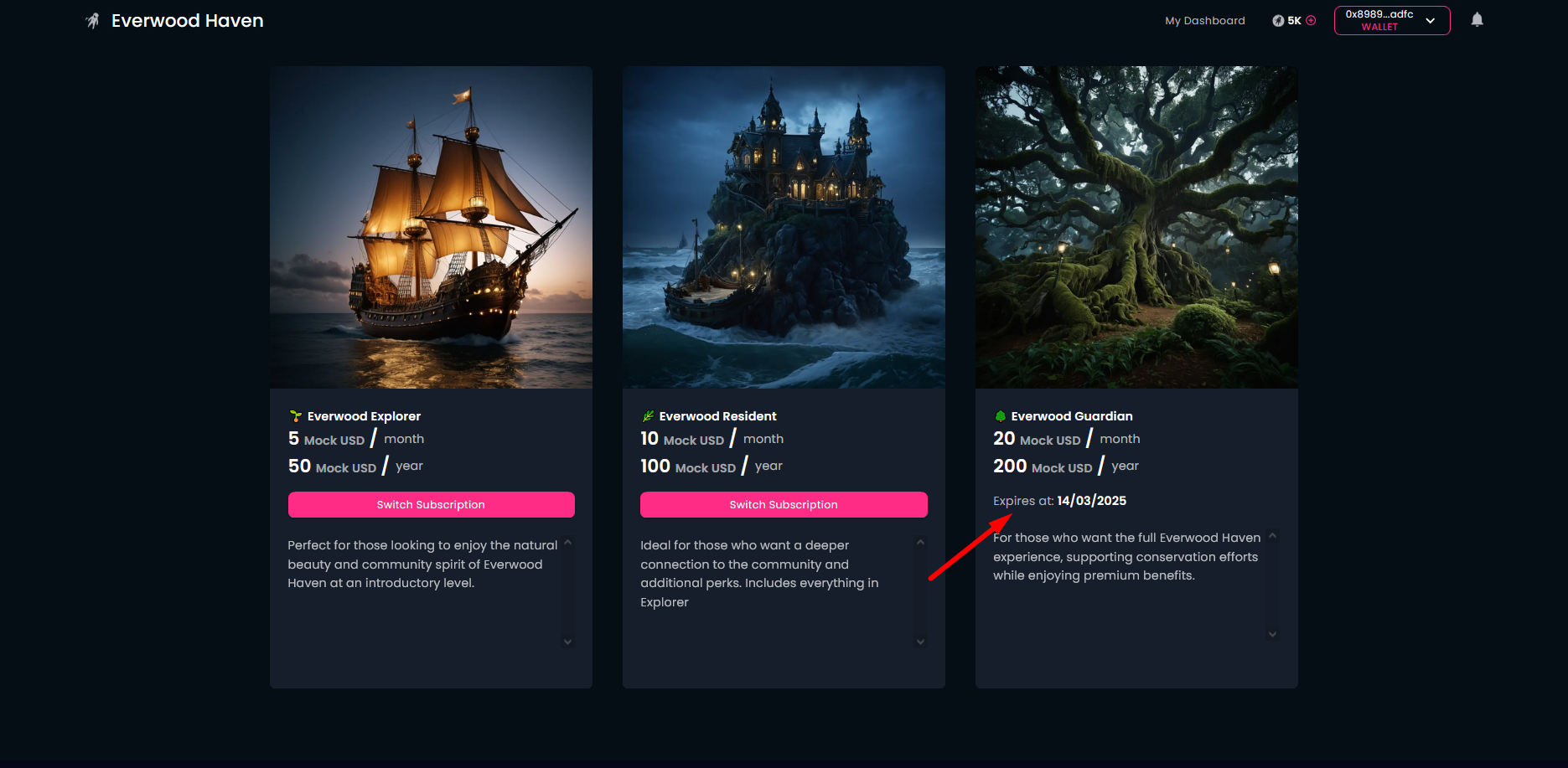
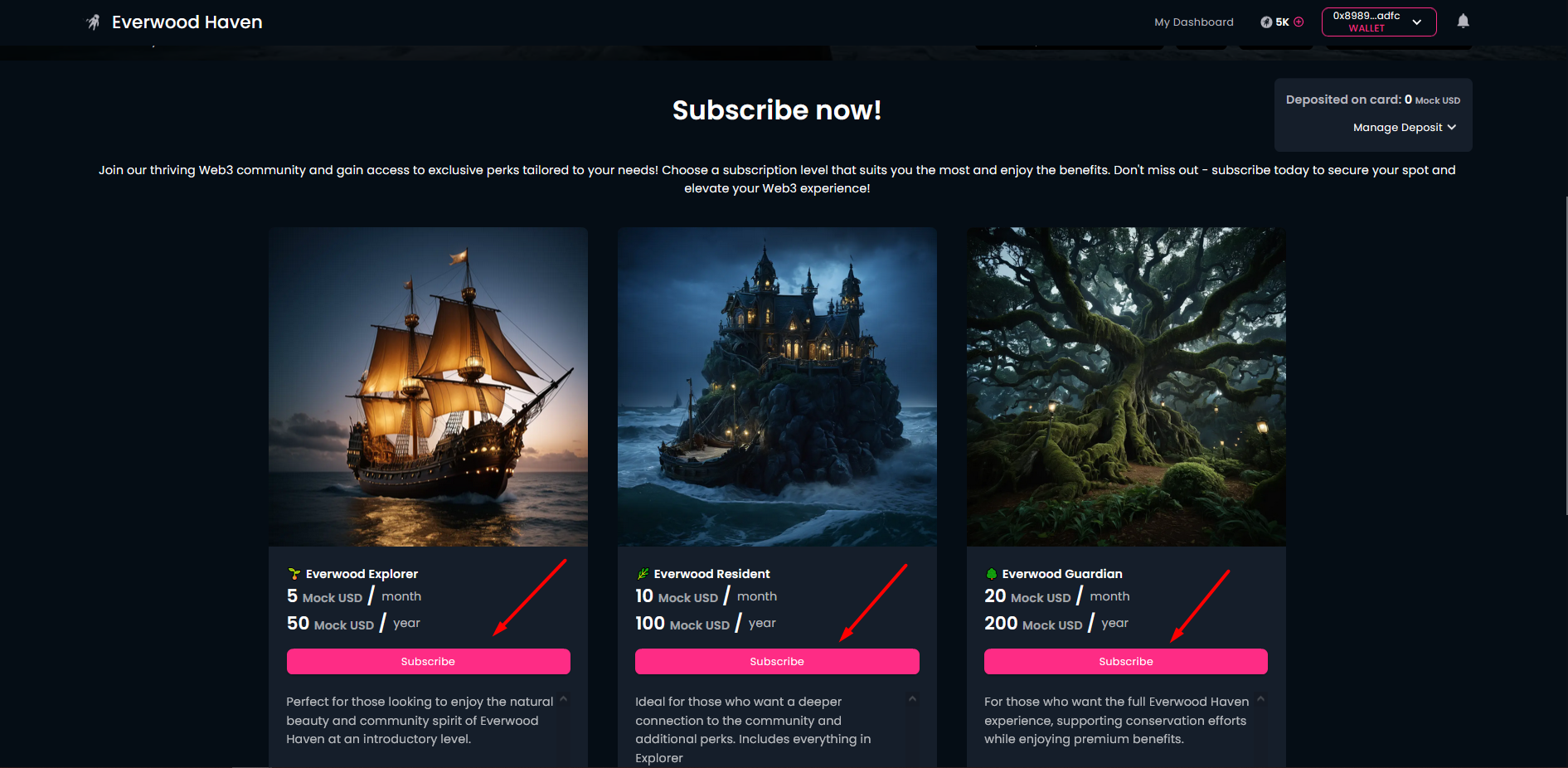
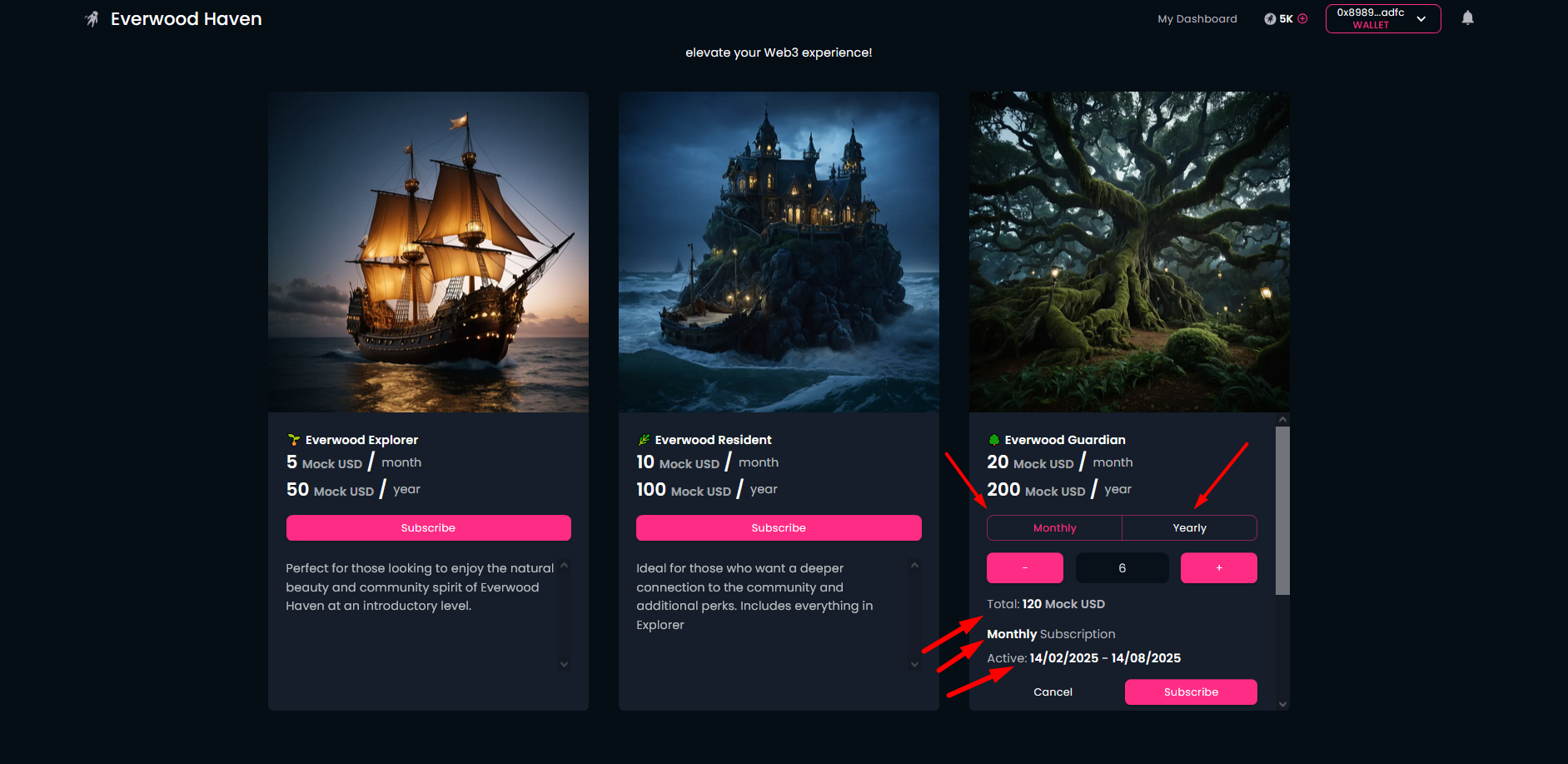
Now, you can see the existing subscription tiers and decide in which membership tier to subscribe.
-
For next, you can decide if you want a monthly or yearly subscription. According to the number of months selected - in case of monthly subscription - you can see the total cost, and the active subscription period. Finally, click on the "Subscribe" button.
-
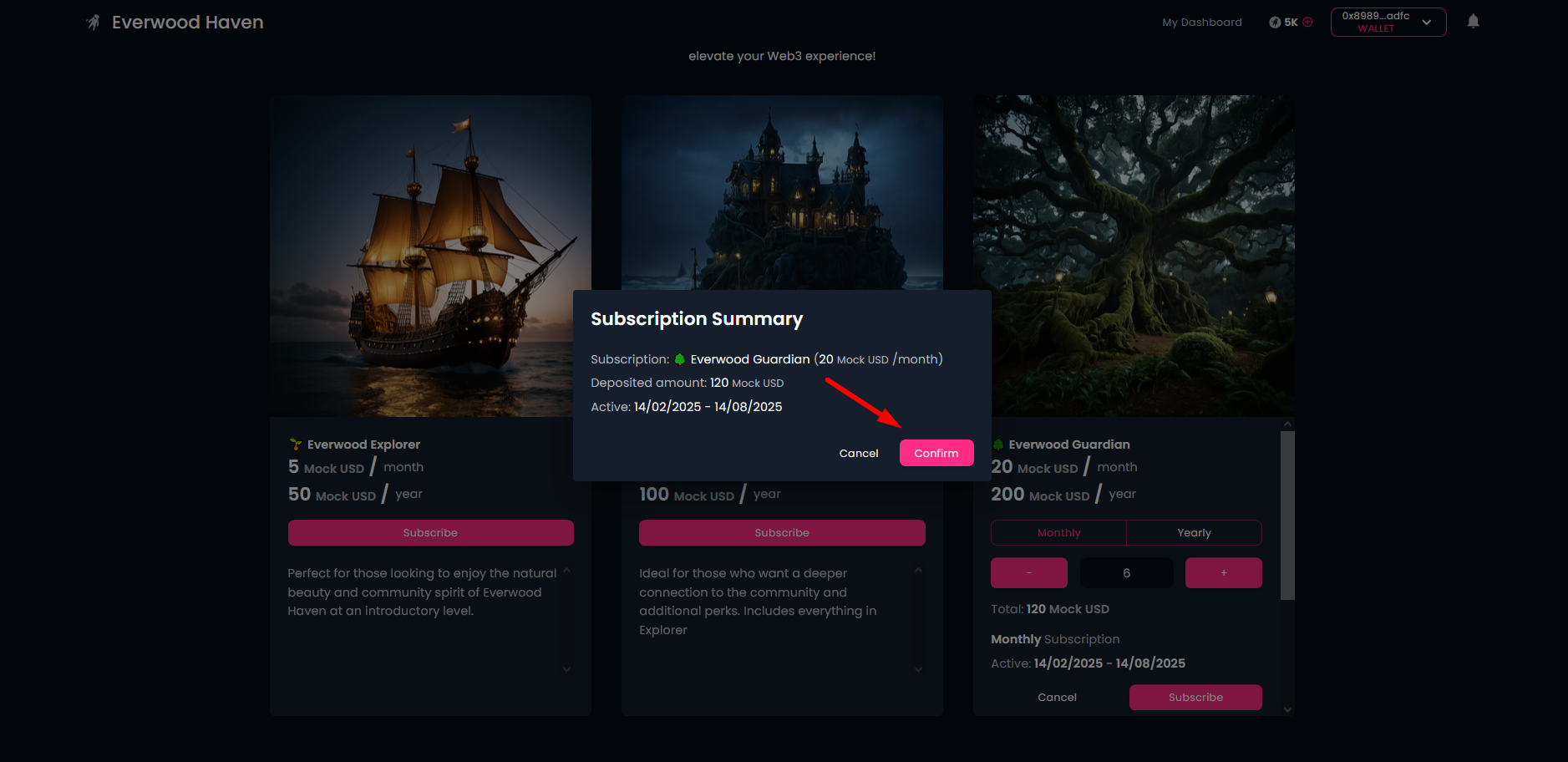
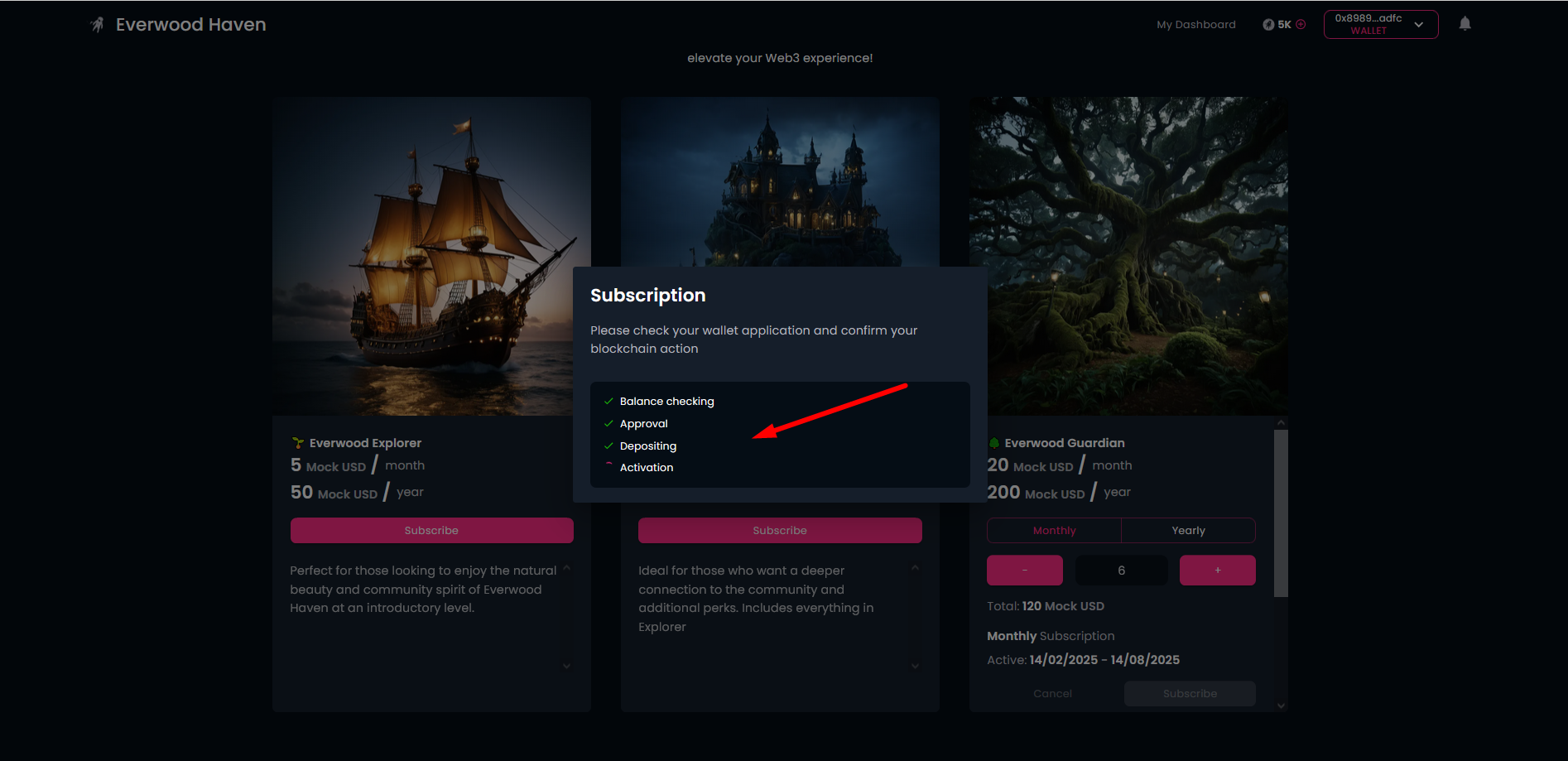
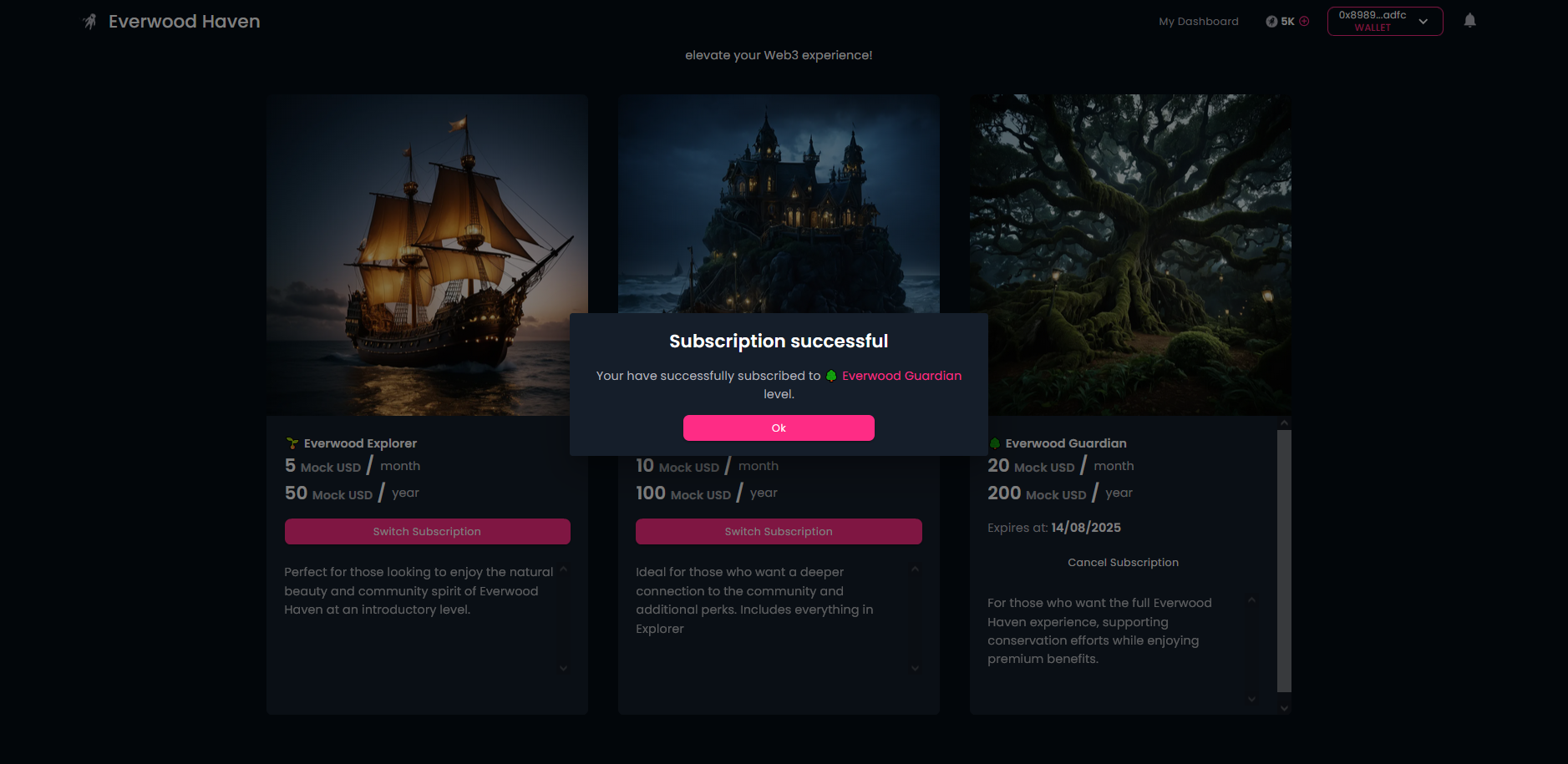
Then, confirm your decision! Here you will have to approve 3 transactions in your wallet, one for Approval, one for Deposit and one for Activation. At the end you will receive the confirmation for your subscription.
¶ Withdraw from deposited amount
If for some reason you changed your mind, you can withdraw your money except the price for the actual subscription month.
-
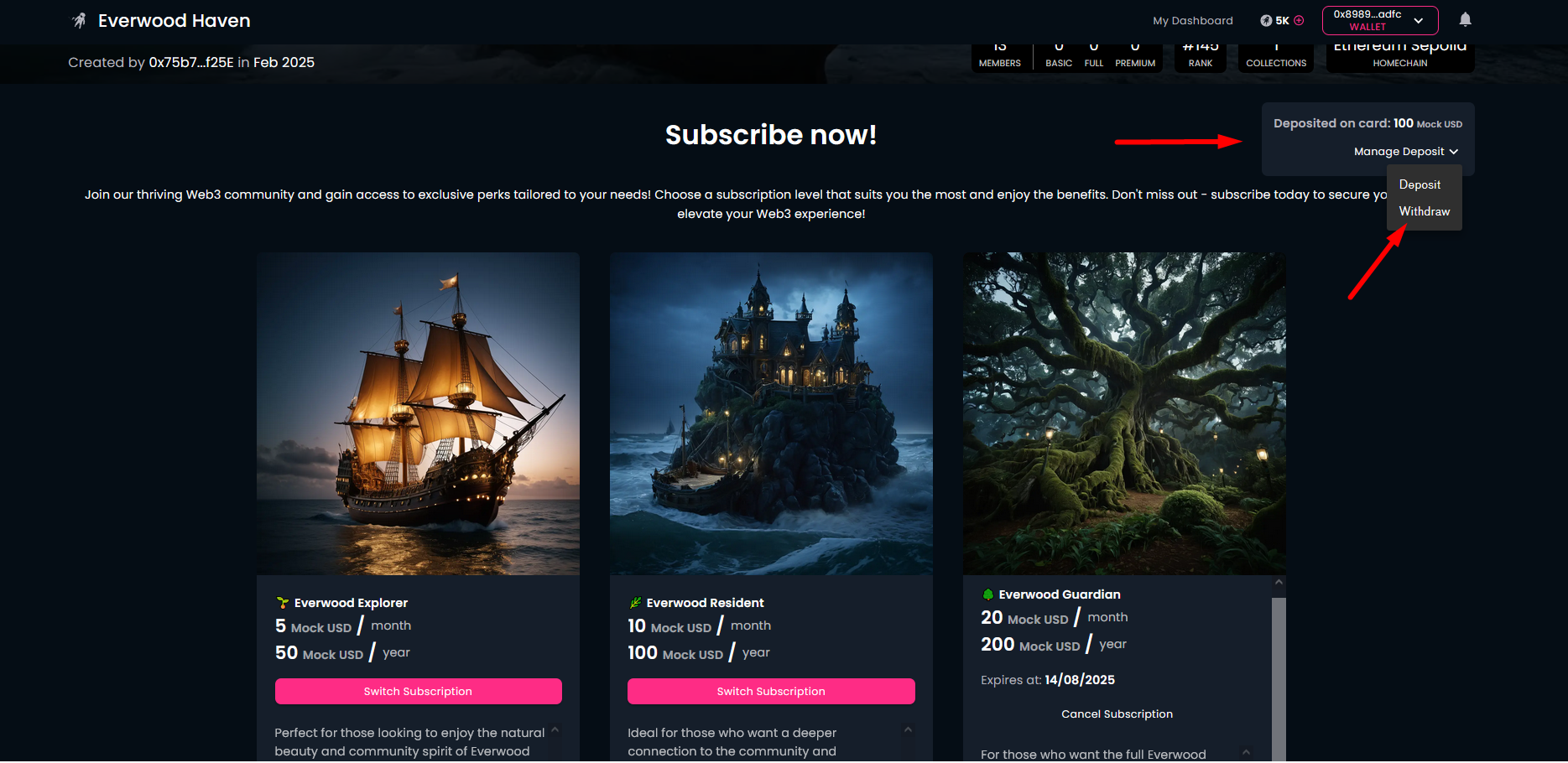
On the top-right corner of the Subscription tiers page you can see the deposited amount. This amount is equal with the total deposited amount minus the actual month's fee.
Here you can initialize the withdraw (or even a new deposit) process.
-
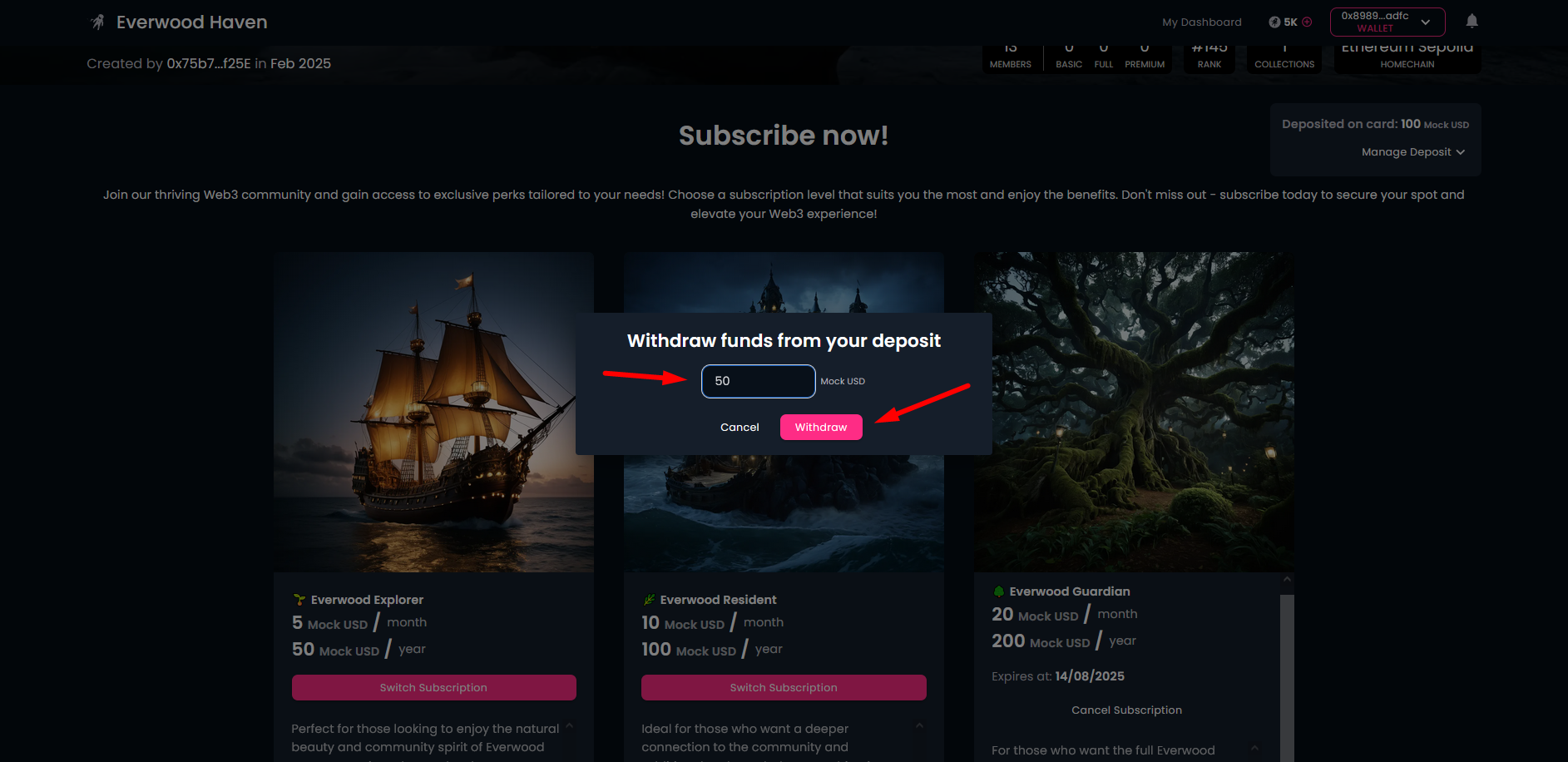
To actually withdraw, you need to specify the amount and click on the "Withdraw" button, then approve the transaction in the wallet.
-
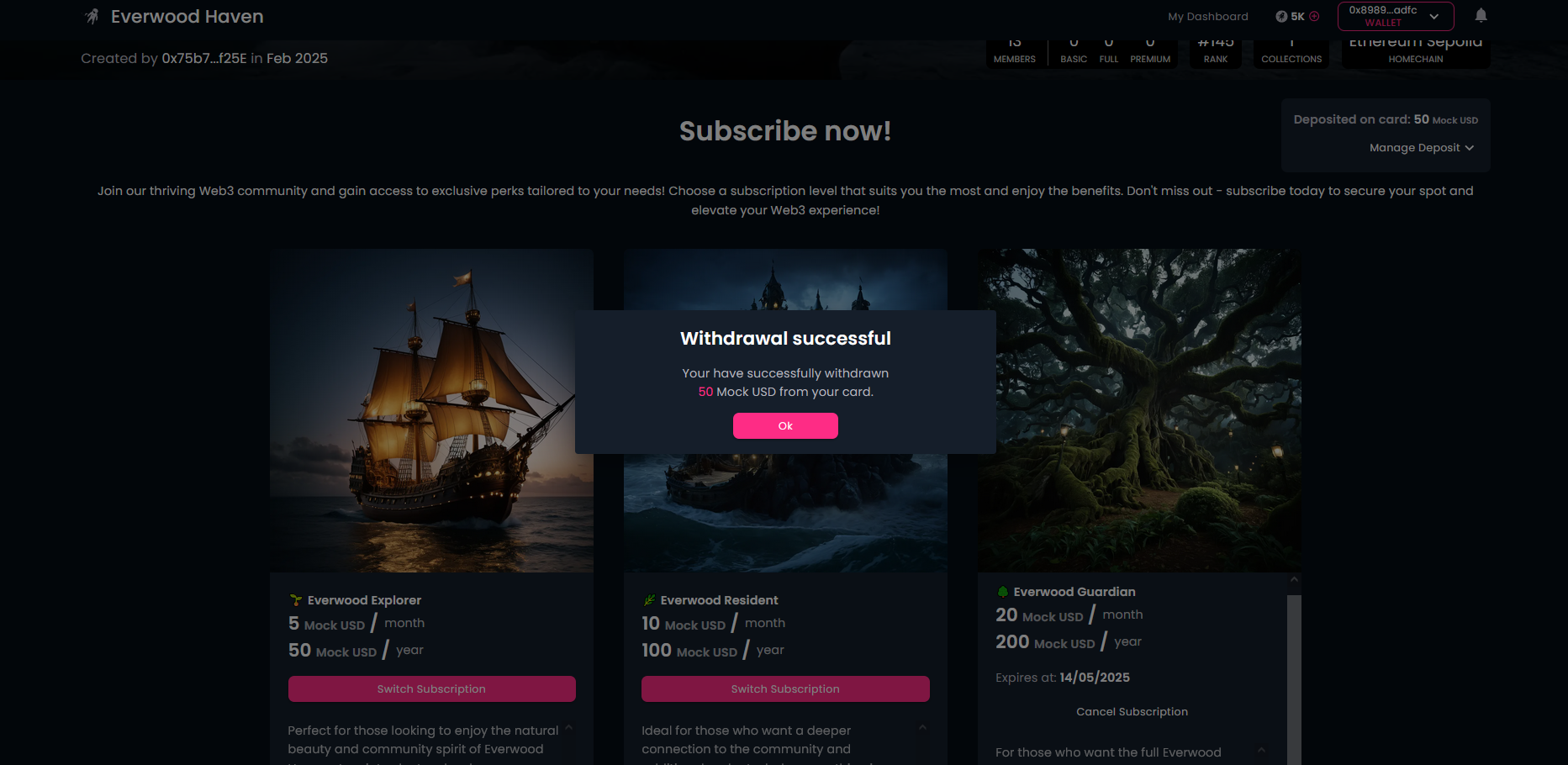
If the transaction was successful, you will recevie the confirmation for it.
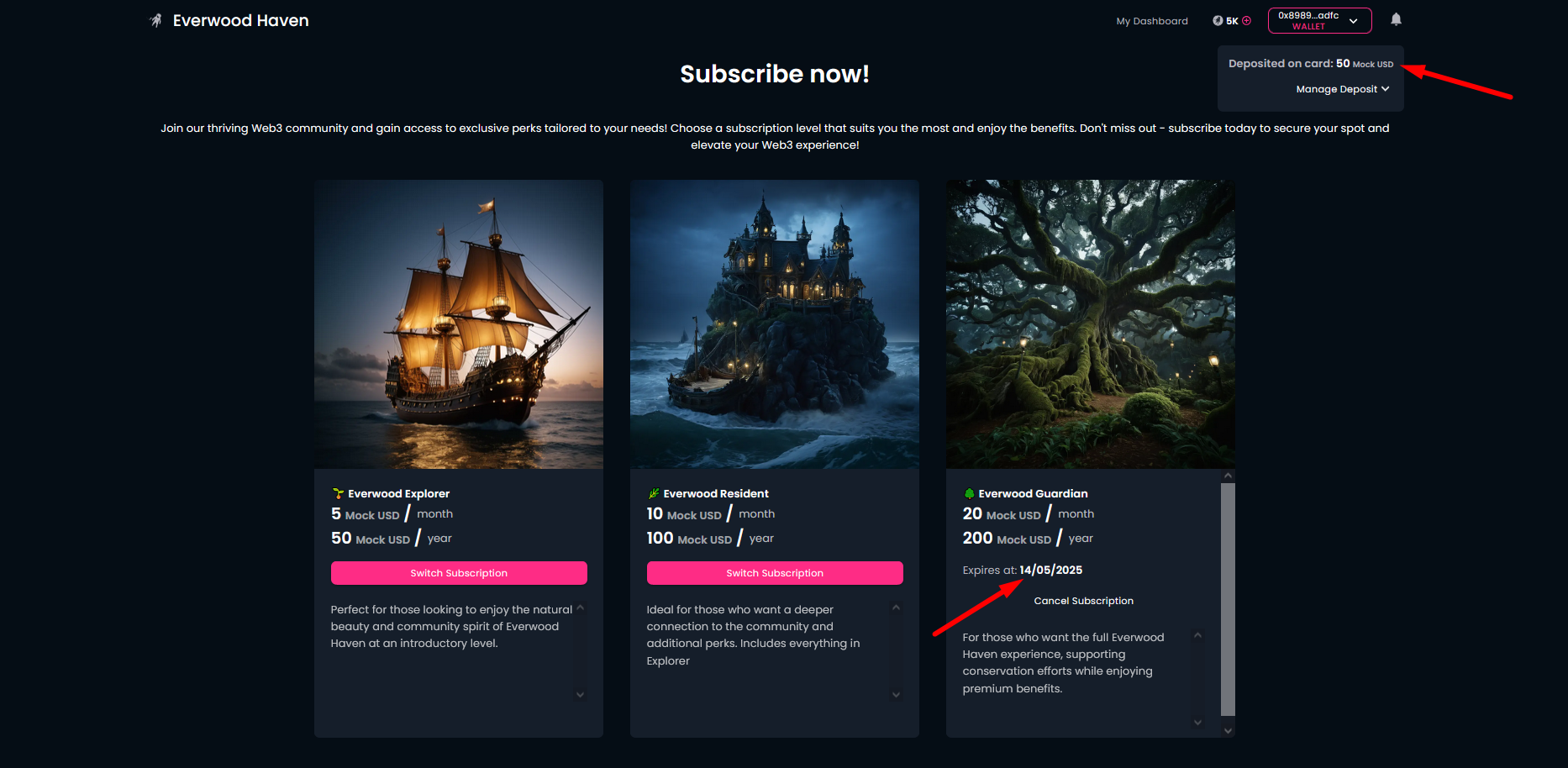
Additionally, on the subscription card, the expiration date is adjusted according to the remaining deposit.
¶ Cancel subscription
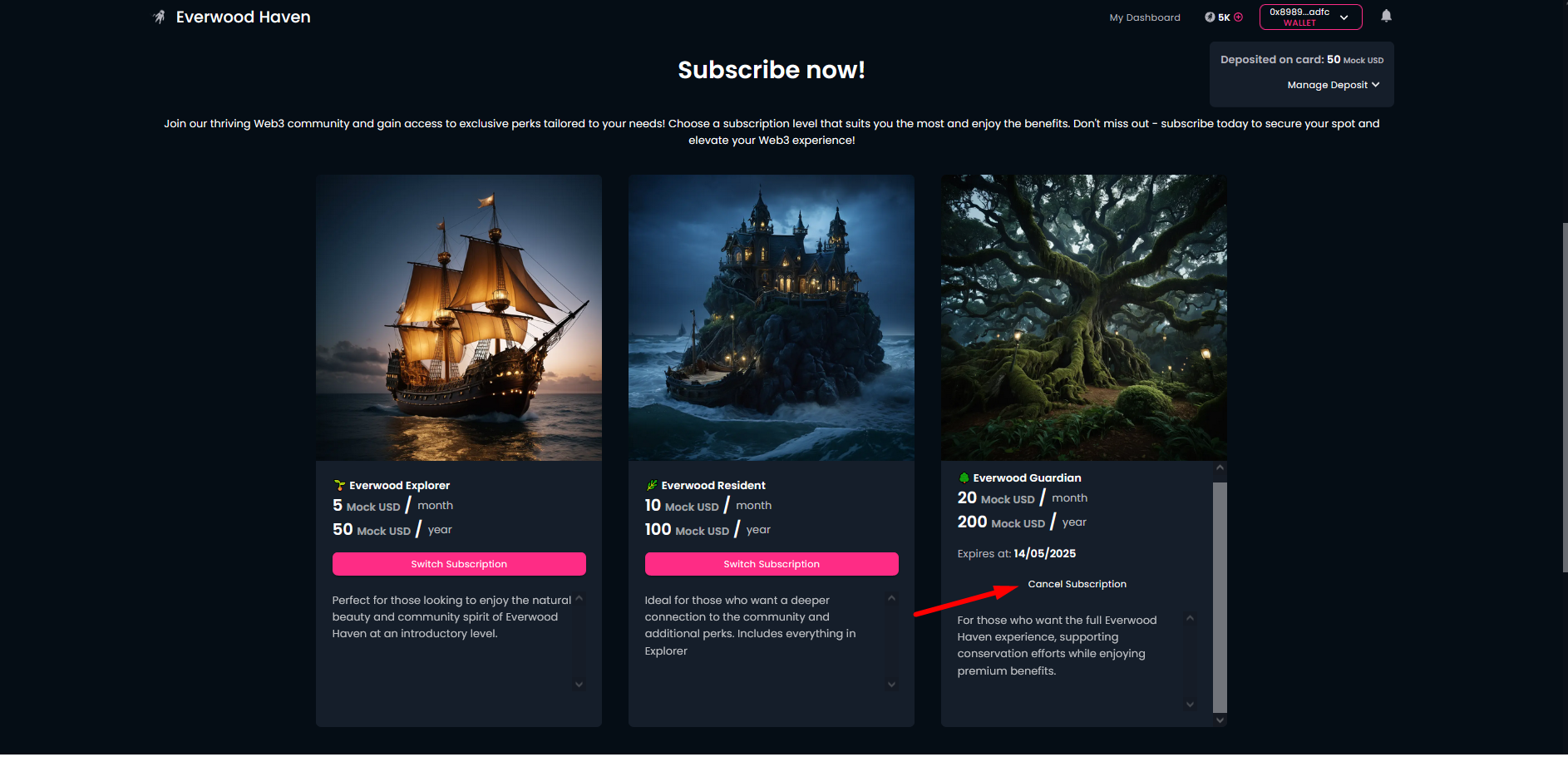
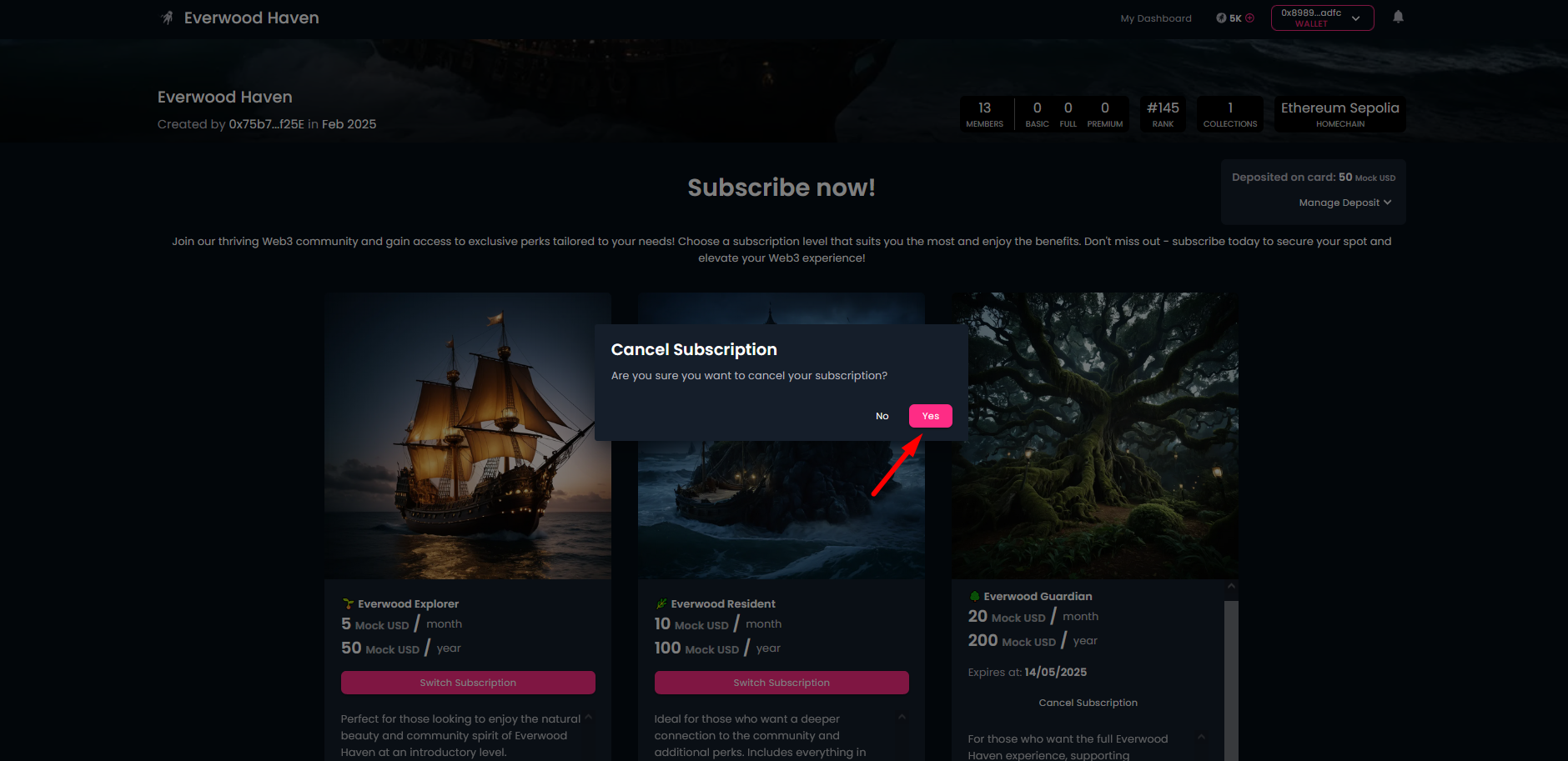
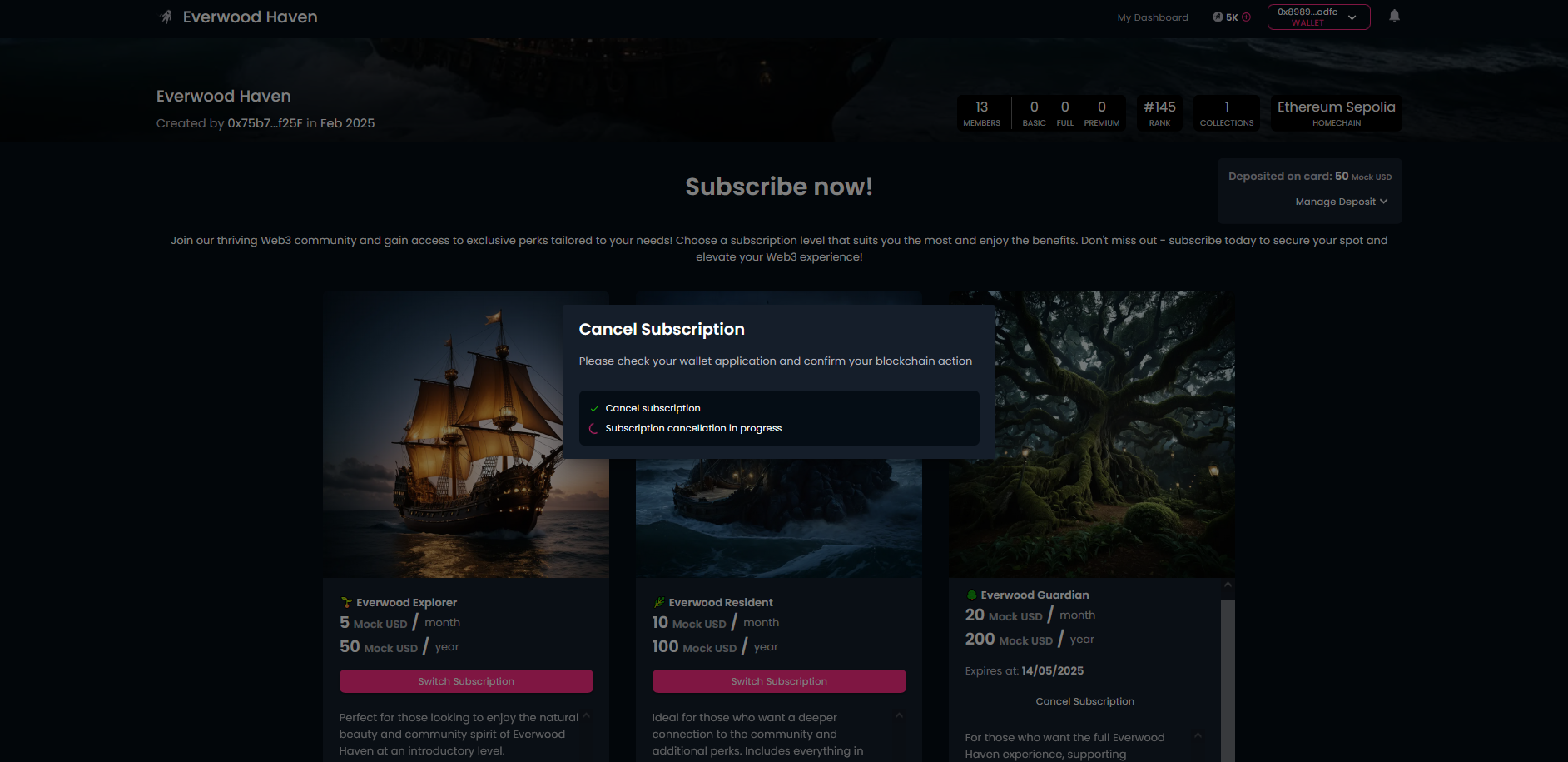
- You are provided with the "Cancel Subscription" button in case you totally changed your mind. Of course, you need to confirm your decision and approve the transaction in your wallet. Finally you will receive the confirmation of subscription cancellation.
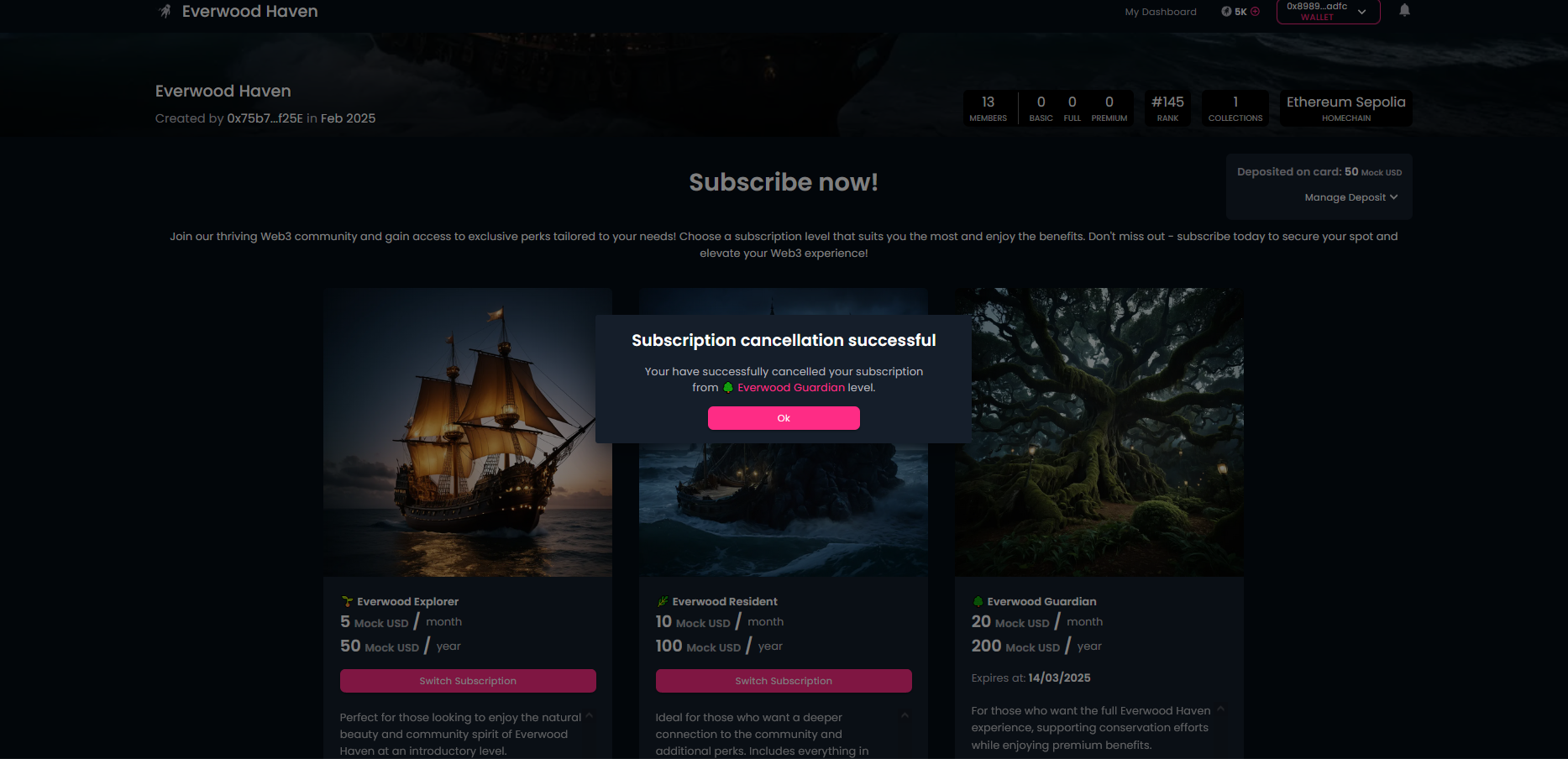
After cancellation you can still see the actual month's subscription with adjusted date.