¶ Create a stream
Audio and video events such as streams, webinars, vlogs, or podcasts are excellent tools for communicating with community members. They help you share exciting news, answer questions, or deliver meaningful moments to special community members.
¶ Prerequisites:
- You must already have a created community.
¶ The process
You are on the community page.
-
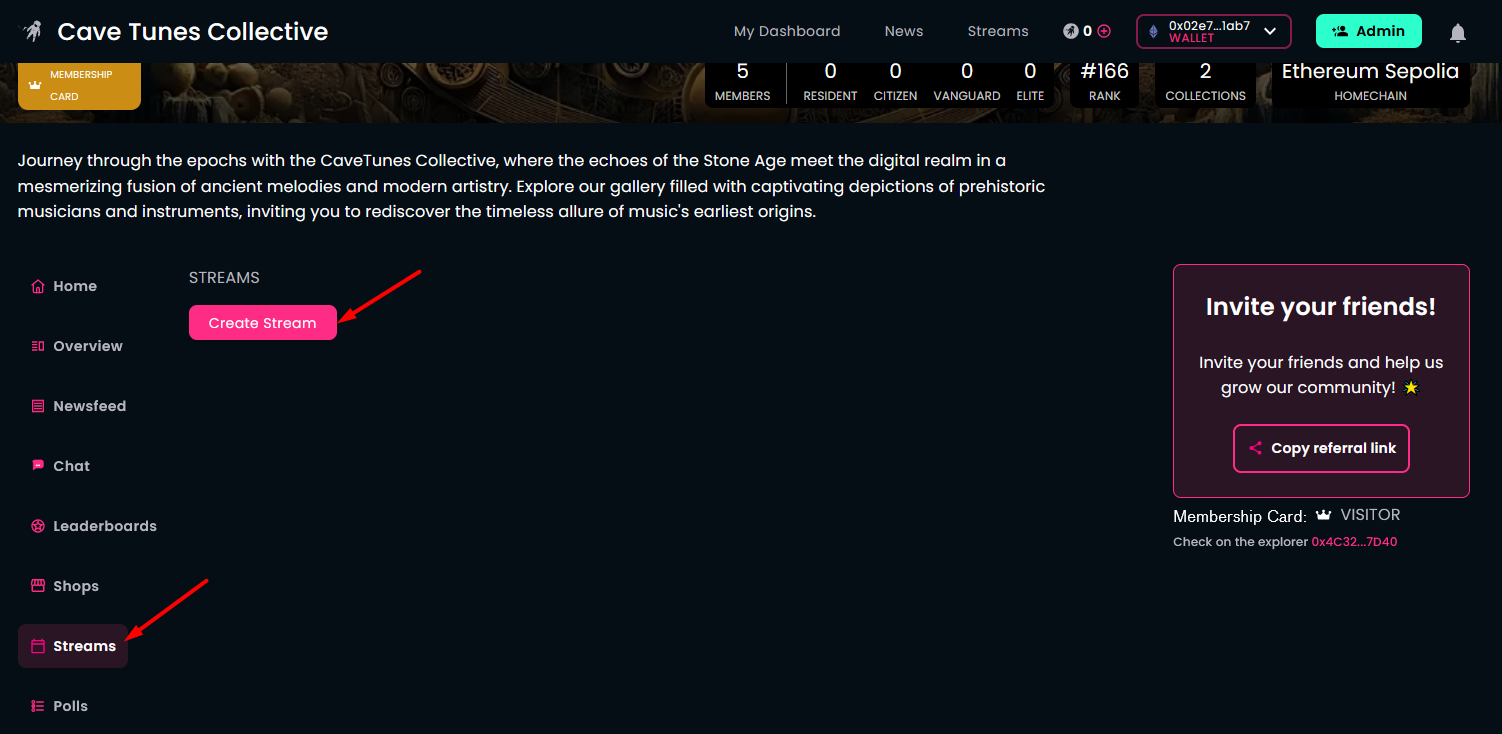
Connect with the wallet you used to create your community. After a successful connection, open the Streams tab. Here, you will see the Create Stream button.
-
Start creating a new stream with the Create Stream button.
-
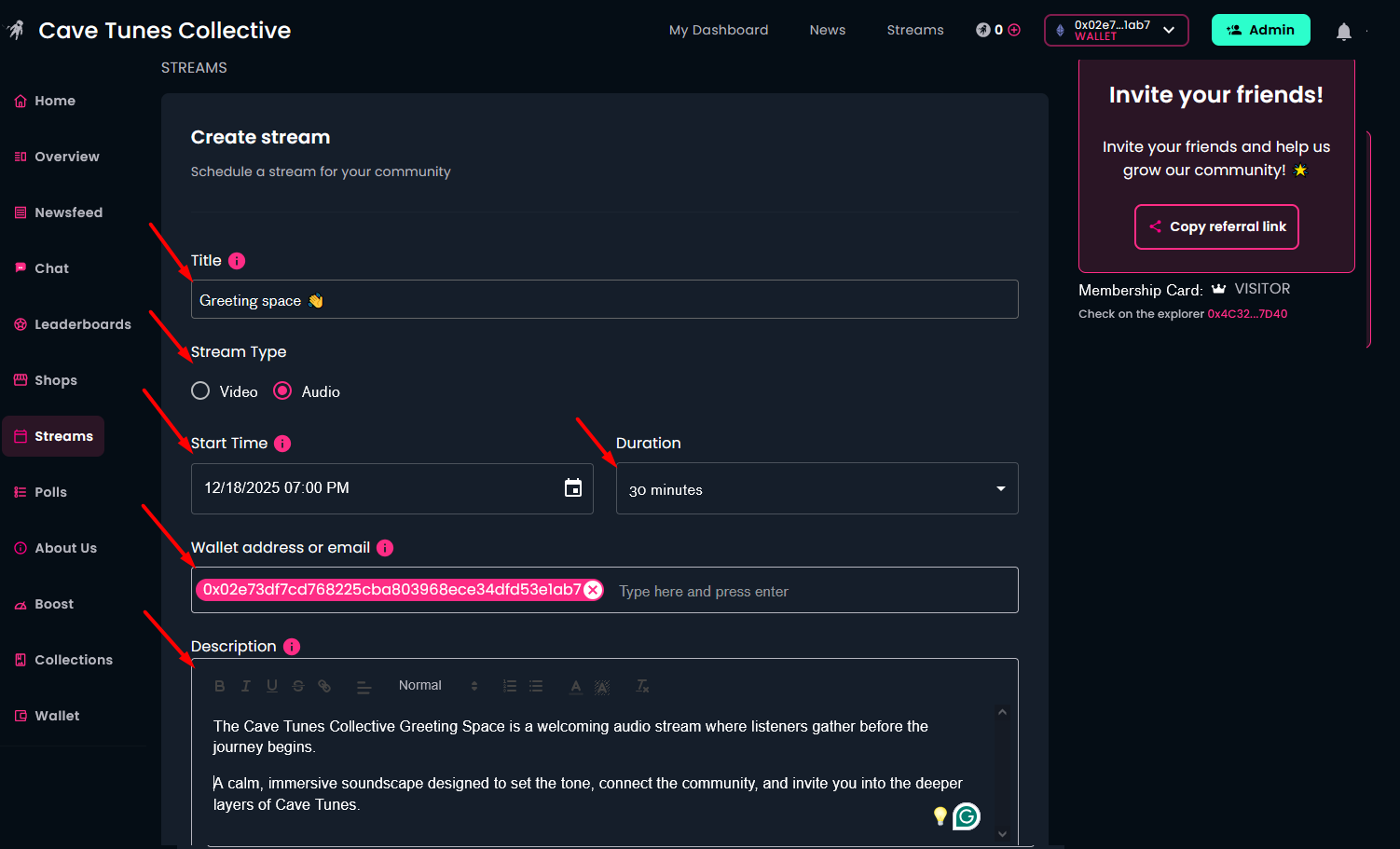
Enter a title for the stream. You may use emojis in the title if you like.
-
Choose whether the stream will be video or audio.
-
Select a date and time for your stream from the calendar.
-
Choose the duration of the stream.
-
Your wallet address is set by default as the host identifier, but you can also provide an e-mail address. Make sure you use the same credentials to log in here and in the meeting room.
-
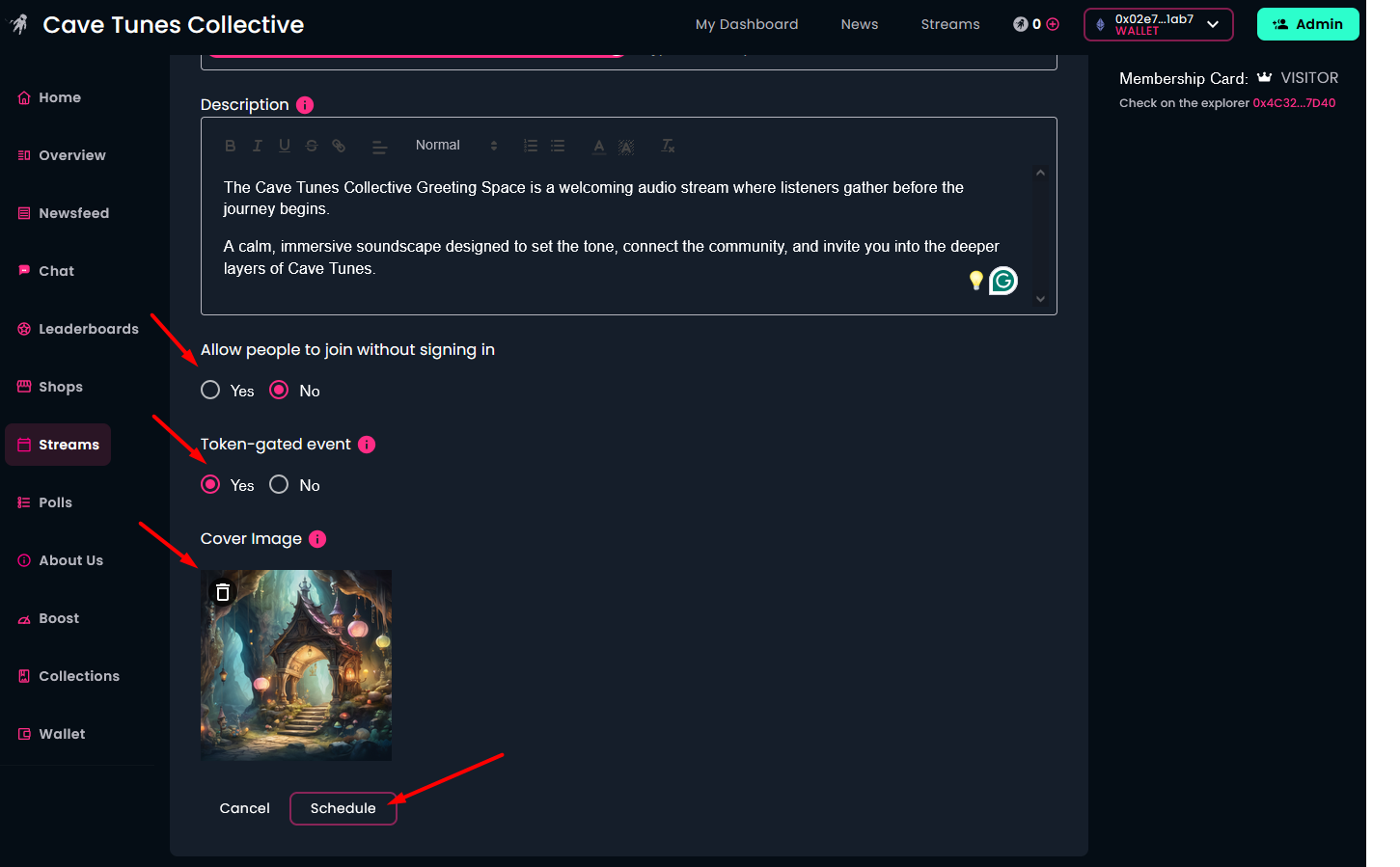
Provide a short description of the stream.
-
Decide whether people can participate without signing in.
-
Choose whether you want a token-gated stream or not. To participate in a token-gated stream, you and your community members need a membership card. However, note that wallets created via social login are not supported for token-gated streams.
-
Upload a cover image for the stream.
-
Click the Schedule button to finalize your settings.
-
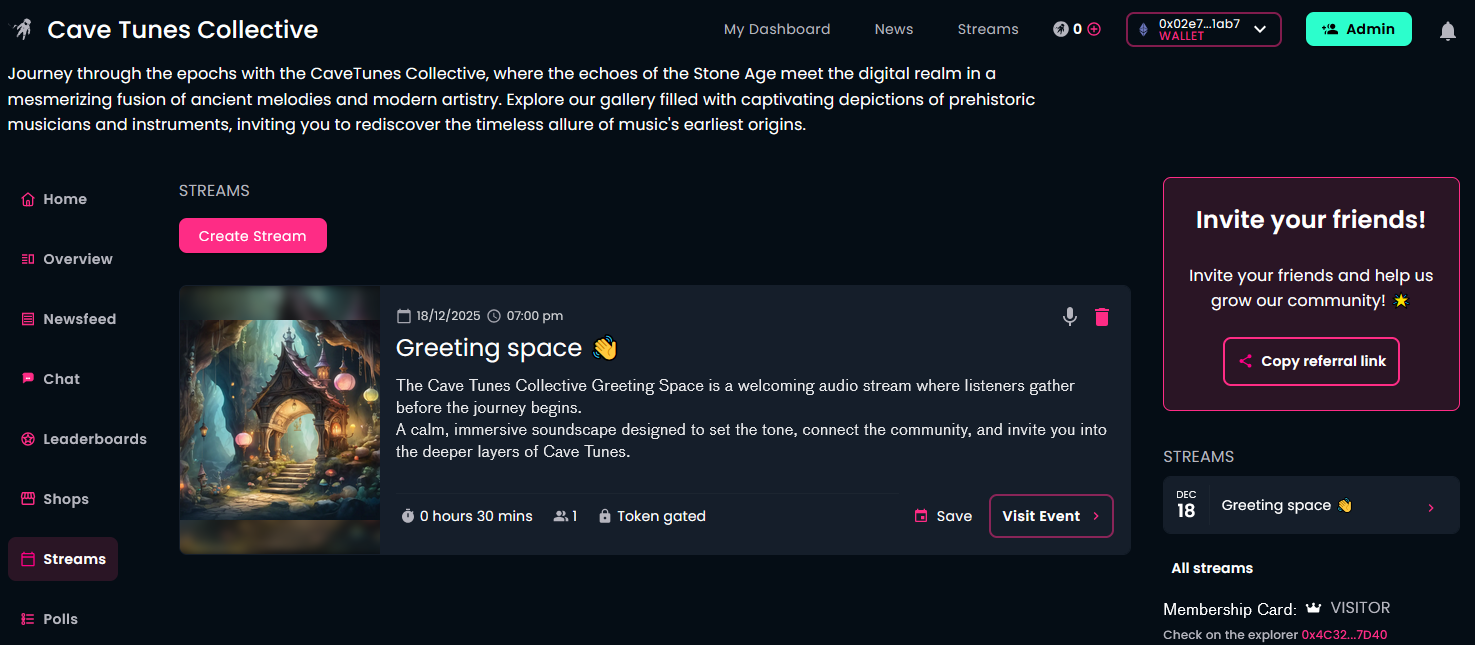
Visitors to your community website will see the scheduled stream and can access it under the Streams tab. The Visit Event button opens the integrated Huddle01 app, where the scheduled streams take place.
¶ Open a stream as host
You are on the community page, in the Streams tab.
-
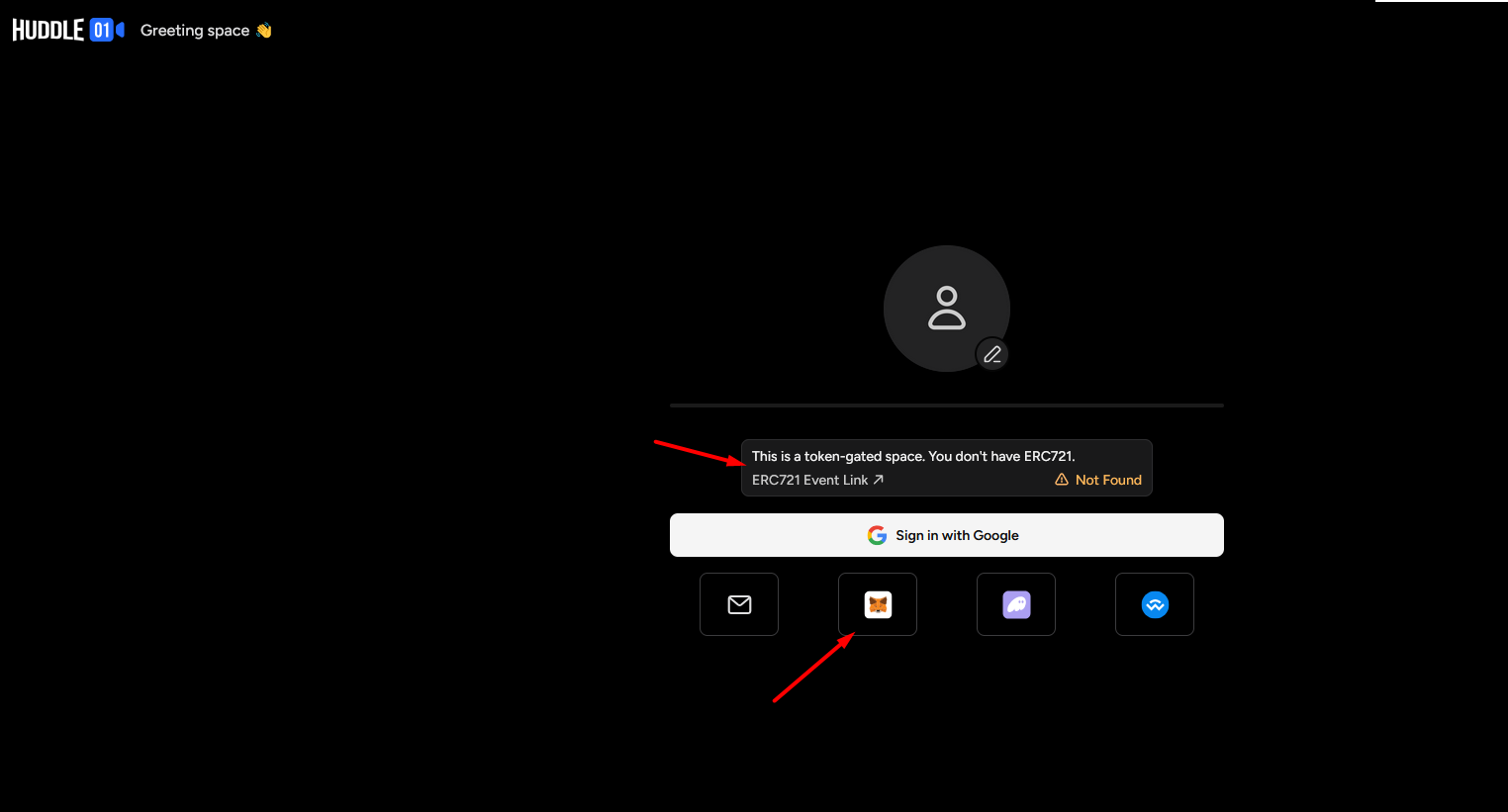
Click the Visit Event button on the stream you want to open, then connect your wallet to verify ownership of the required token for this token-gated stream.
-
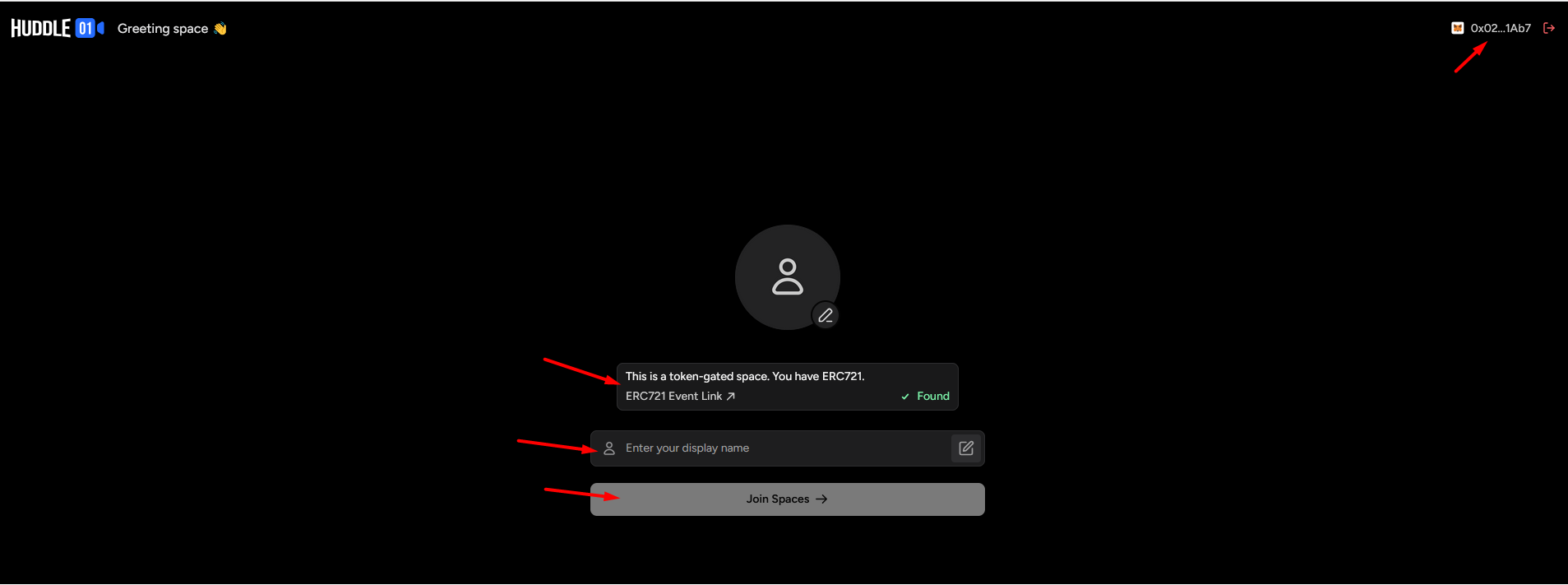
After successful verification, type your name and click Join Spaces button.
-
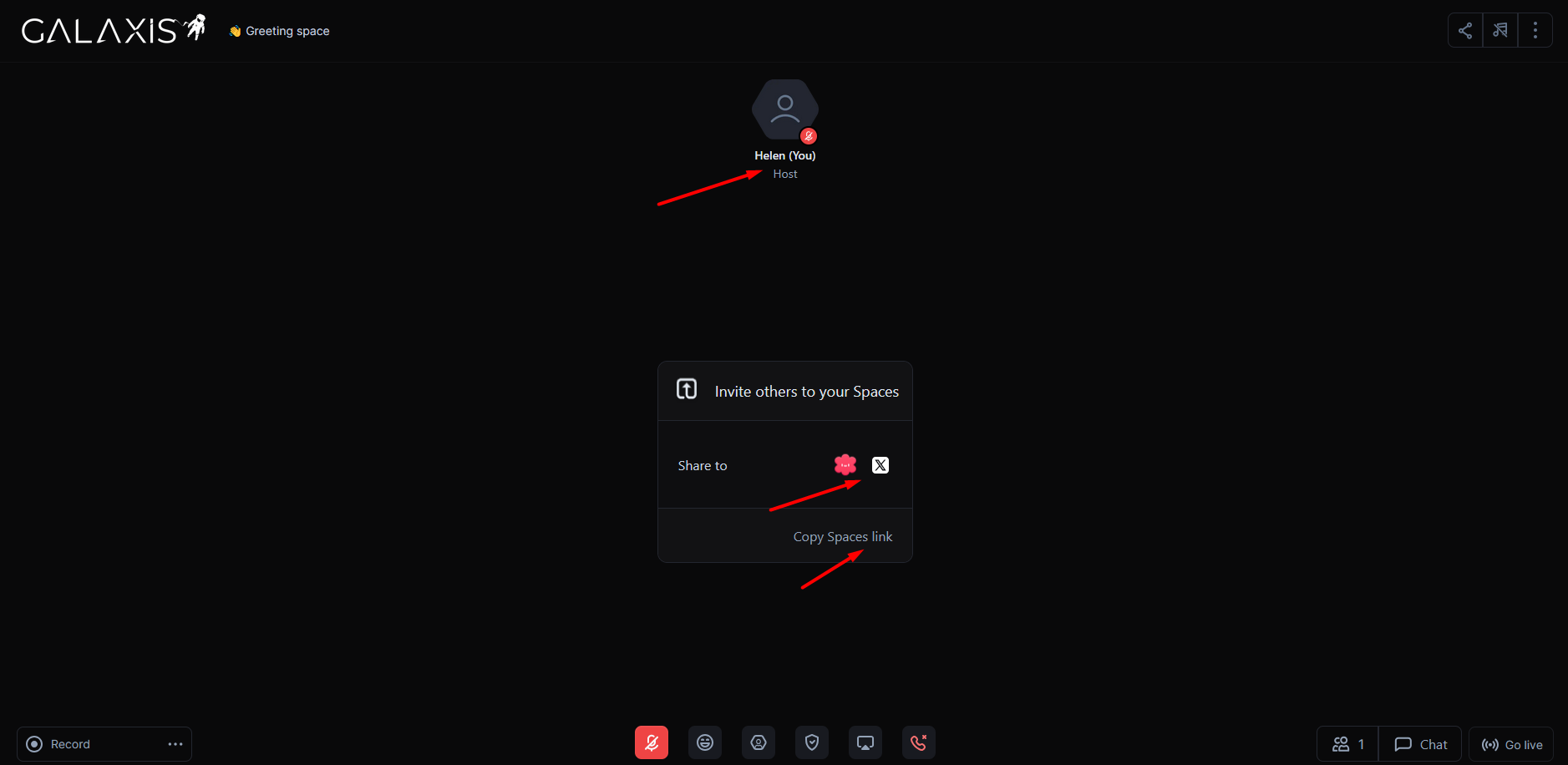
You are now the Host and have entered the event. On this screen, you may share your event on platforms like Hey and X, or copy the event link to share through any other app. Note that participants must wait until the host joins the event, they cannot join before the host.
-
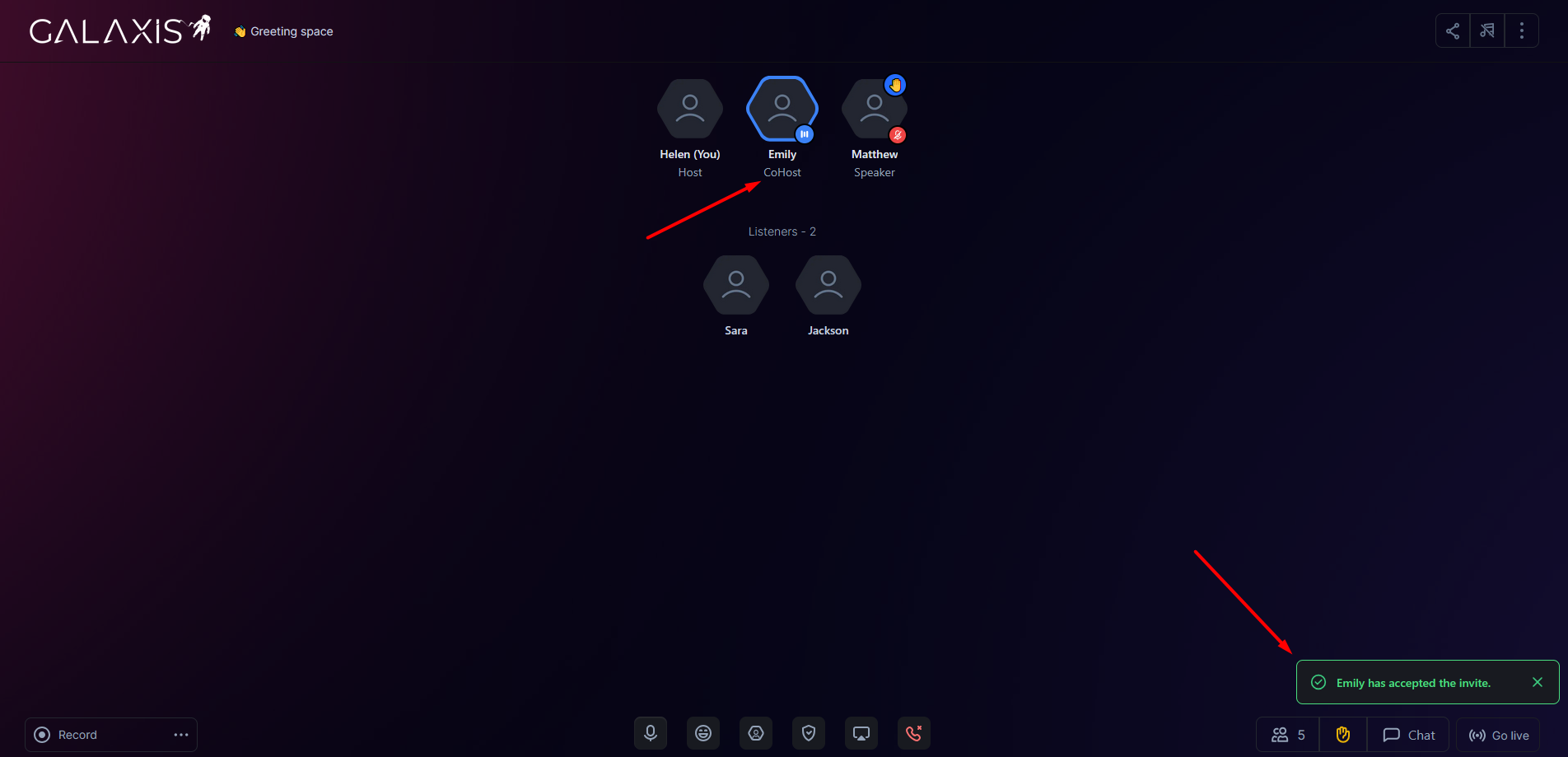
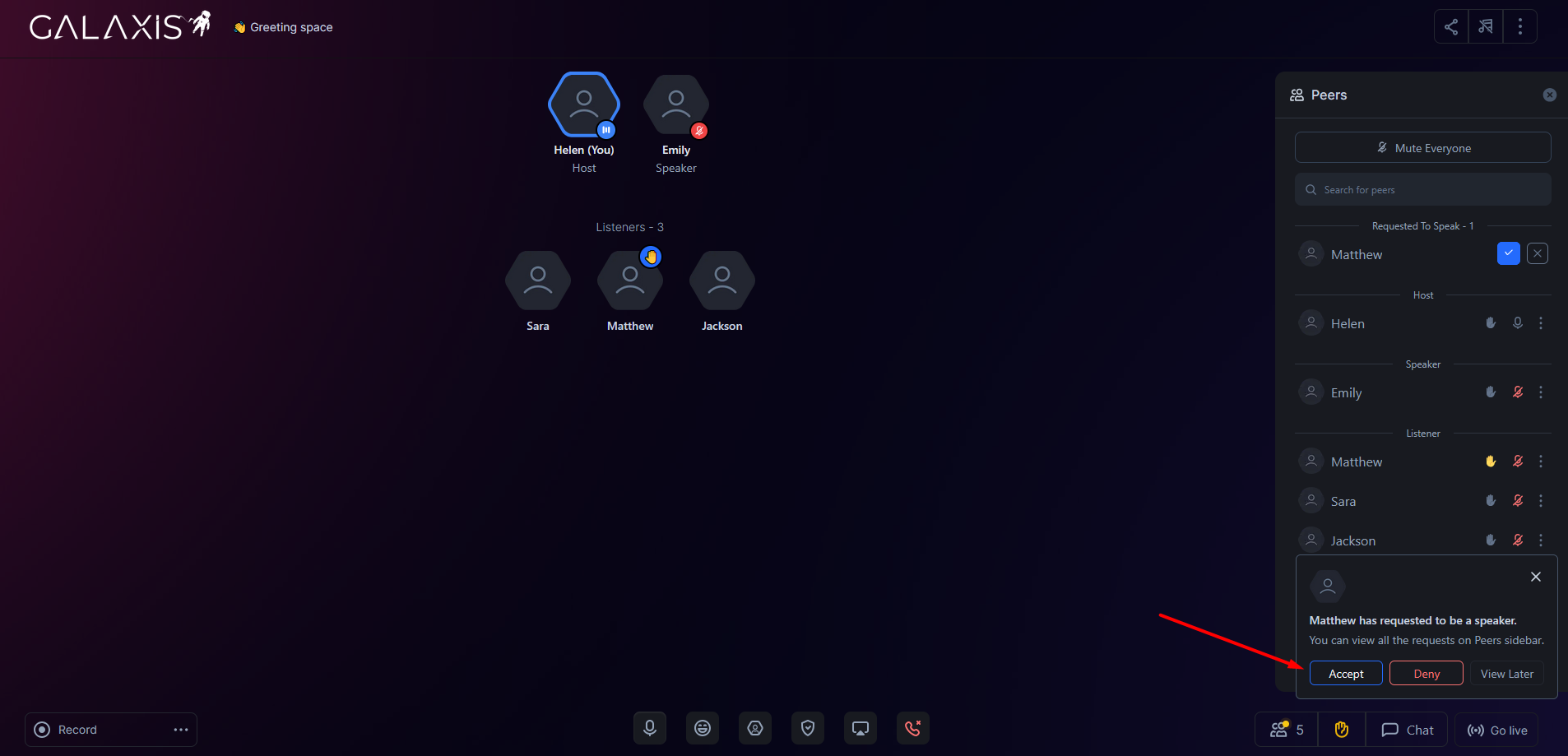
Once participants have joined the event, the host can invite a chosen person to be a co-host. The invited person must accept the invitation to become a co-host. As a co-host, one can act like the "right hand" of the Host giving permisssions to participants who requested to speak.
-
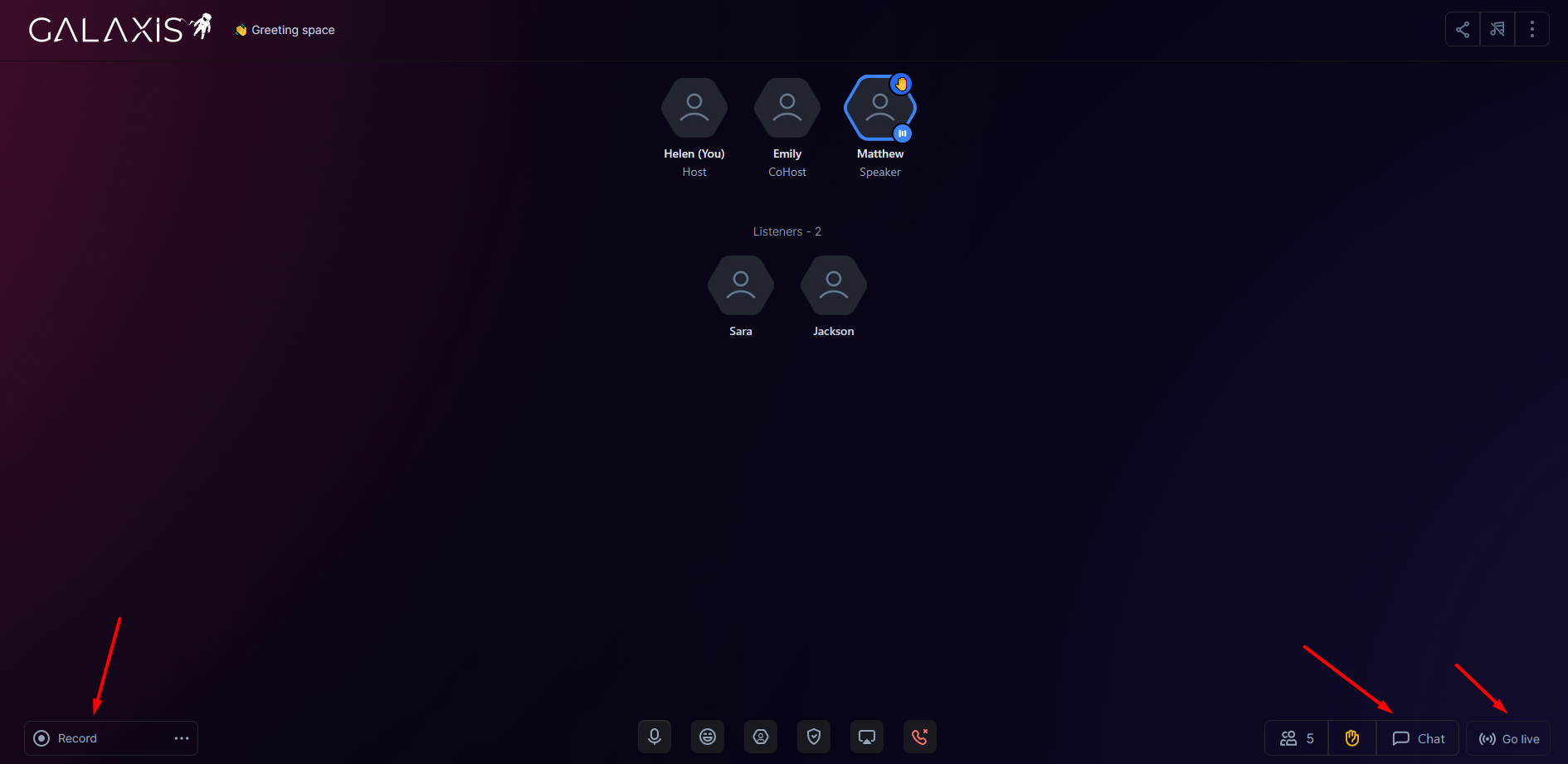
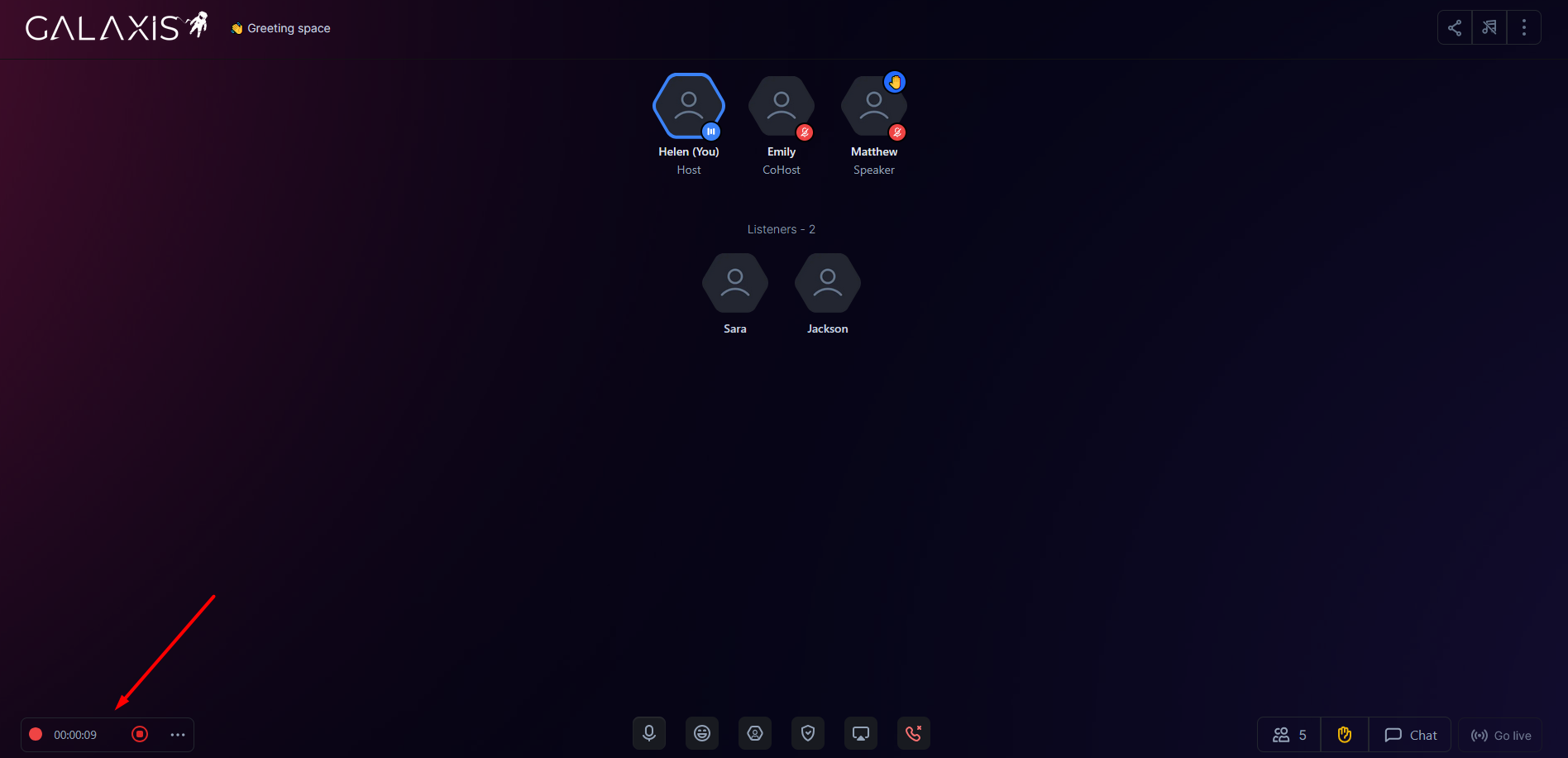
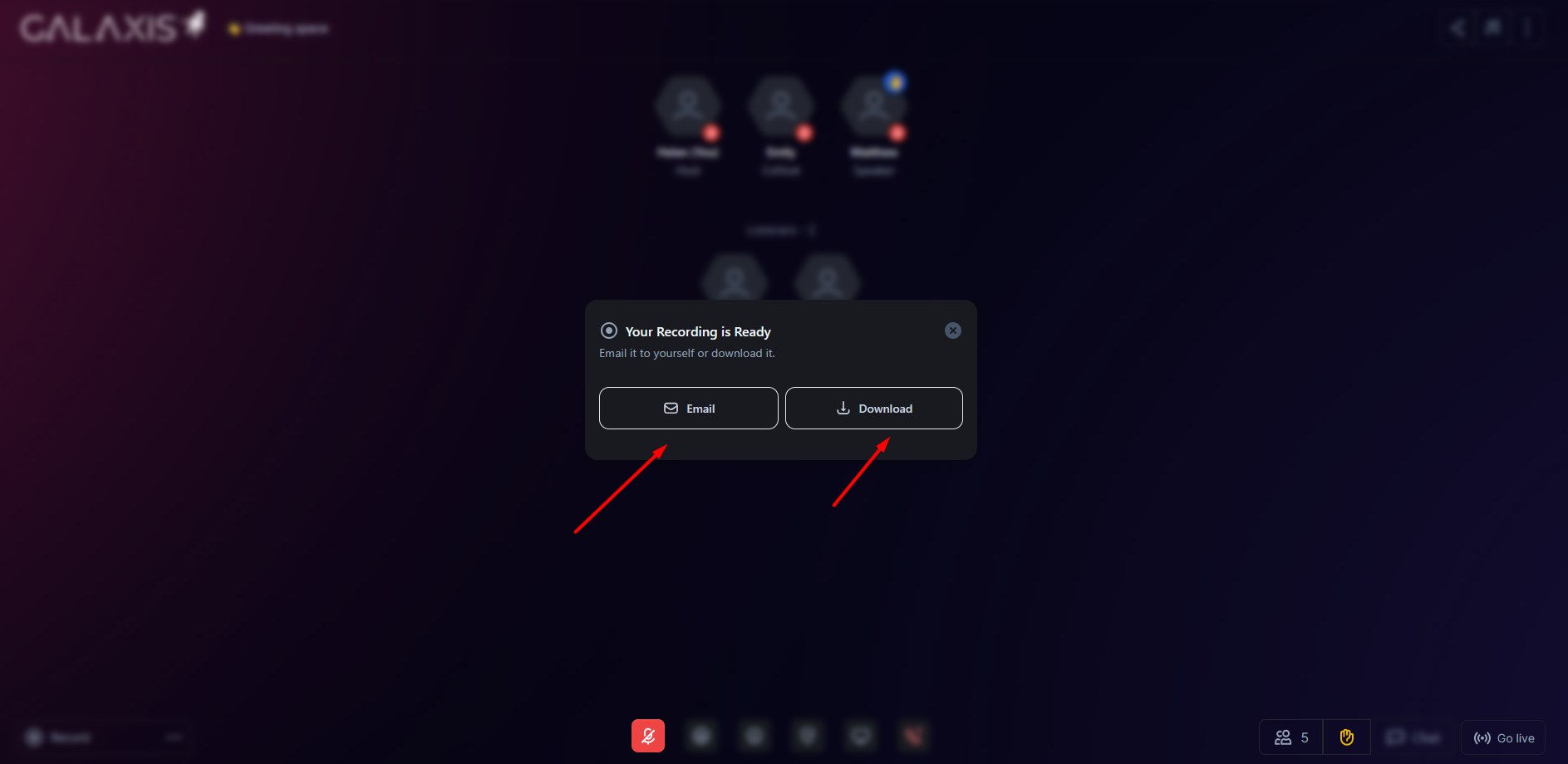
The host has the option to record the event. After recording, the video can be uploaded to IPFS, sent by e-mail, or downloaded.
-
Additionally, if the host wishes, they can live stream the event to platforms such as YouTube, Twitch, LinkedIn, X, or via a custom RTMP setup.
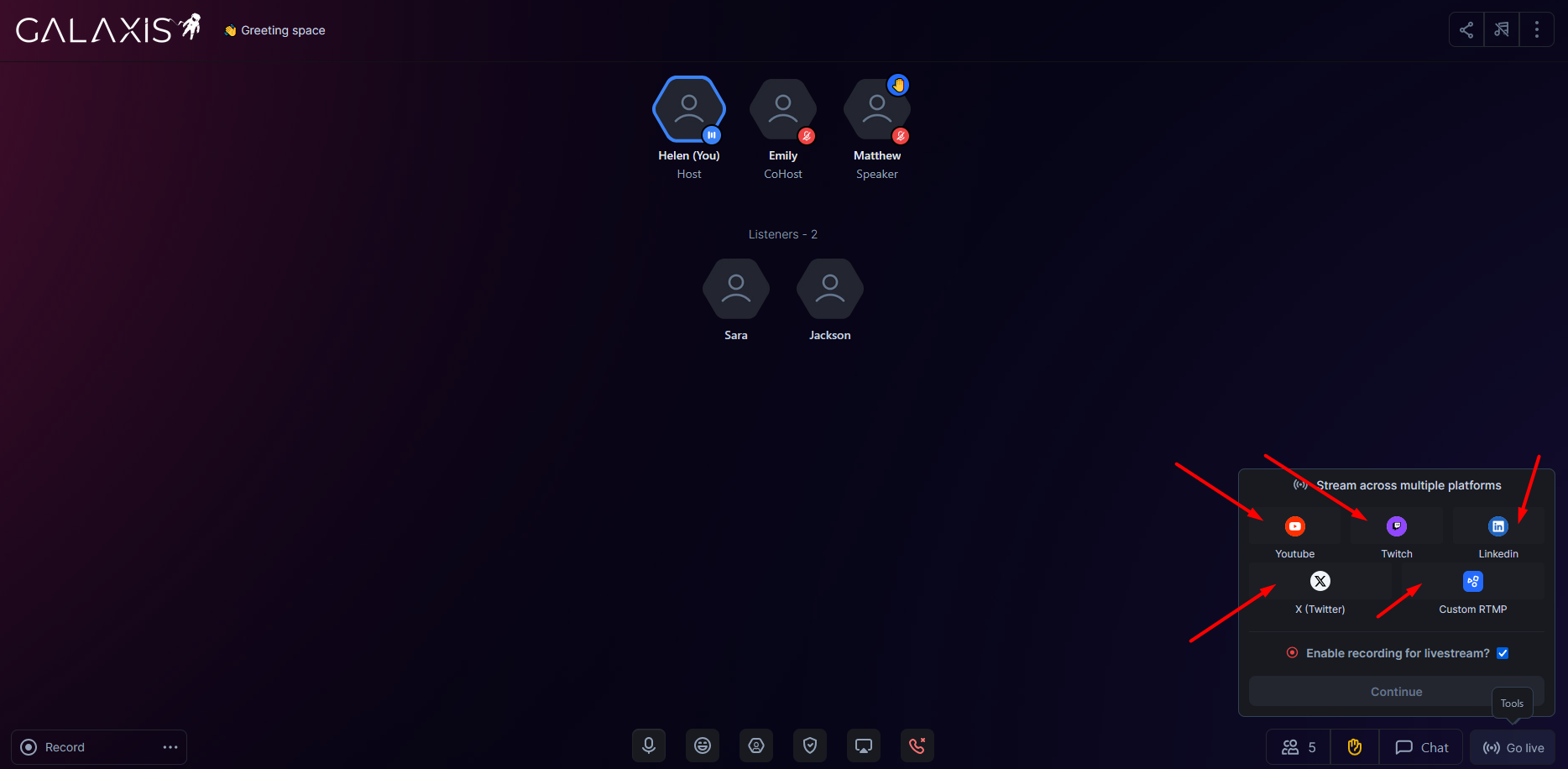
For more information on how to use these features, consult the respective platform guides (e.g., YouTube Studio, X Producer, LinkedIn Live settings, or Twitch stream key help).
https://studio.youtube.com/
https://studio.x.com/producer
https://www.linkedin.com/video/golive/now/
https://help.twitch.tv/s/article/twitch-stream-key-faq?language=en_US