¶ Create an NFT Shop
This tutorial is about how to create a new NFT Shop.
¶ Prerequisites
- Have the Shop App deployed.
¶ Step 1
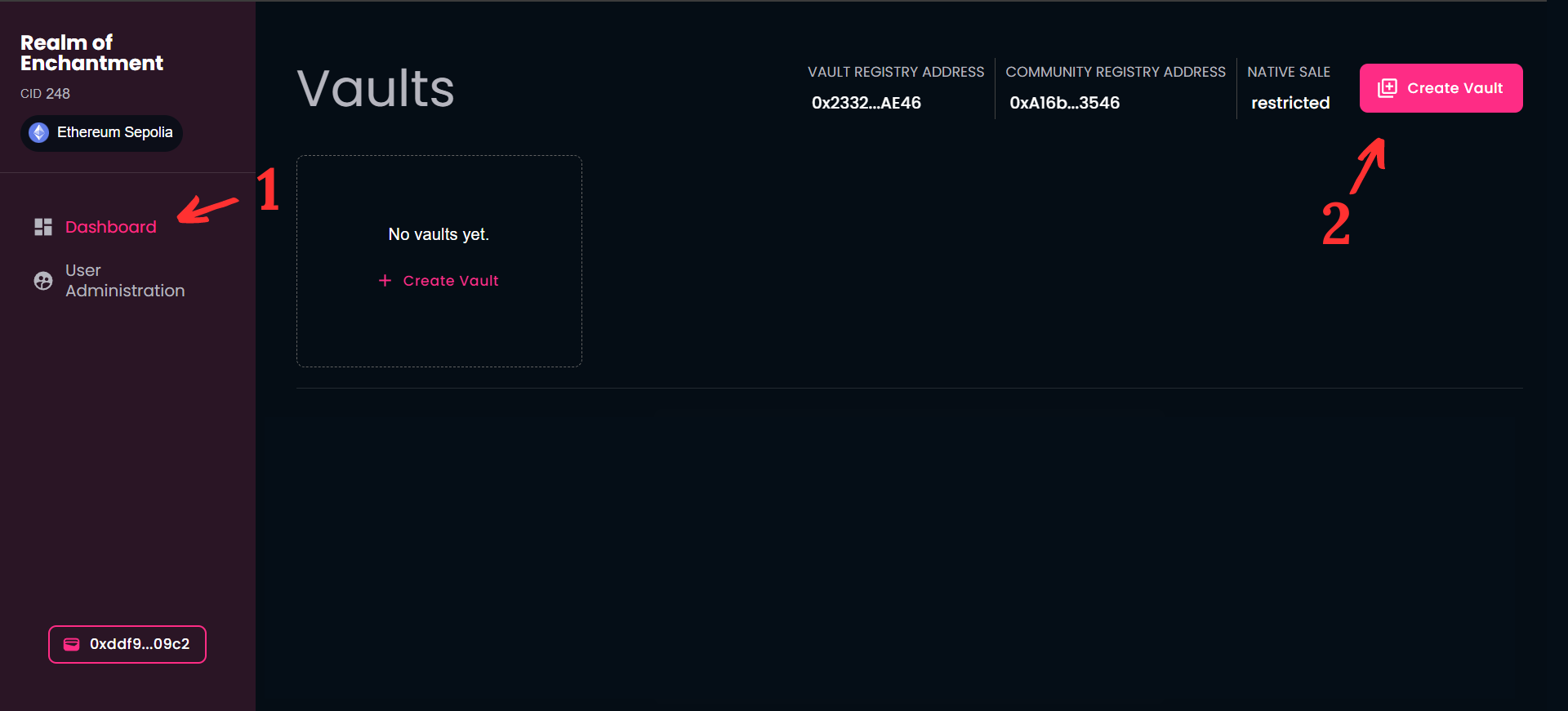
- Select the “Dashboard” menu to access the Shops screen.
- Click on the “Create Shop” button to create a new shop.
¶ Step 2
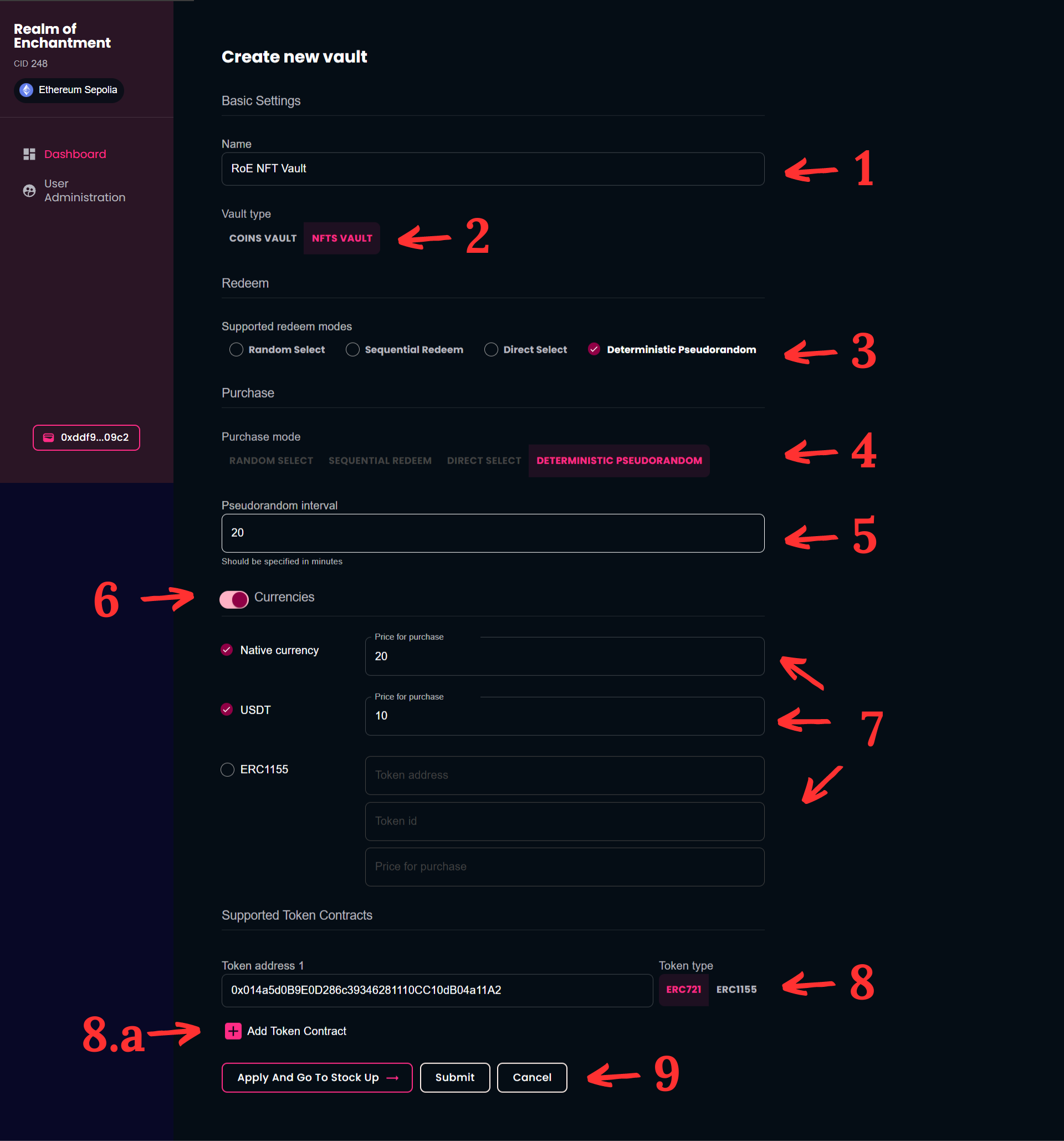
¶ Create shop with random select:
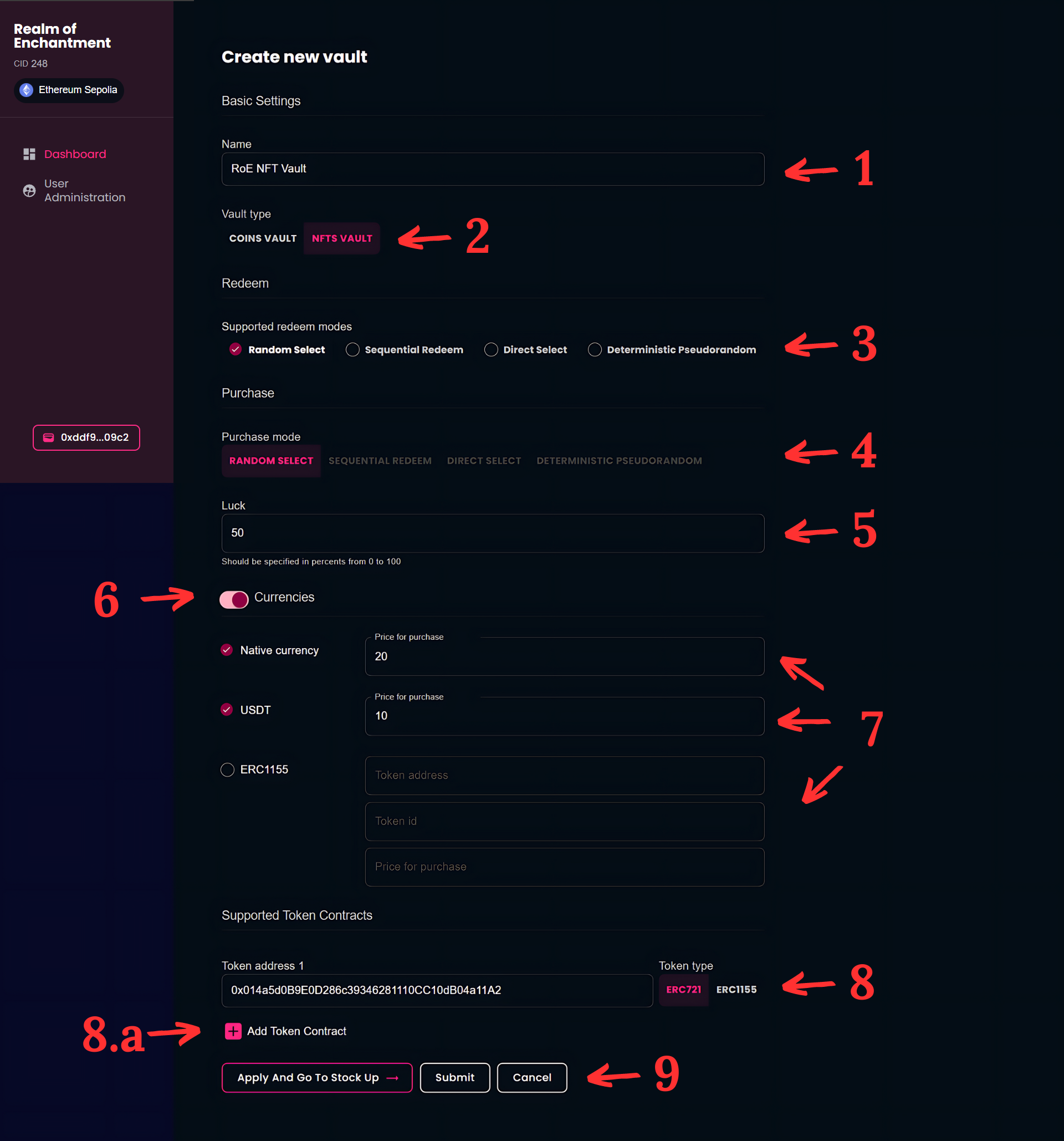
- Provide a name for the shop.
- Select the "NFTs shop" for Shop type.
- Select "Random select" from Supported redeem modes dropdown. This means that when a user can have an NFT card from the Shop, that card will be redeemed randomly.
- Select "Random select" from Purchase mode dropdown. This means that when a user can purchase an NFT card from the Shop, that card will be redeemed randomly.
- Define the Luck value.
- Activate the "Currencies" button.
- Select the payment method (Native currency, USDT and/or ERC1155) and set the price.
- Enter the token's contract address.
8.a Click on the "+" button to add a new Token address. - After everything is set up, click on the "Submit" button.
¶ Create shop with sequential redeem:
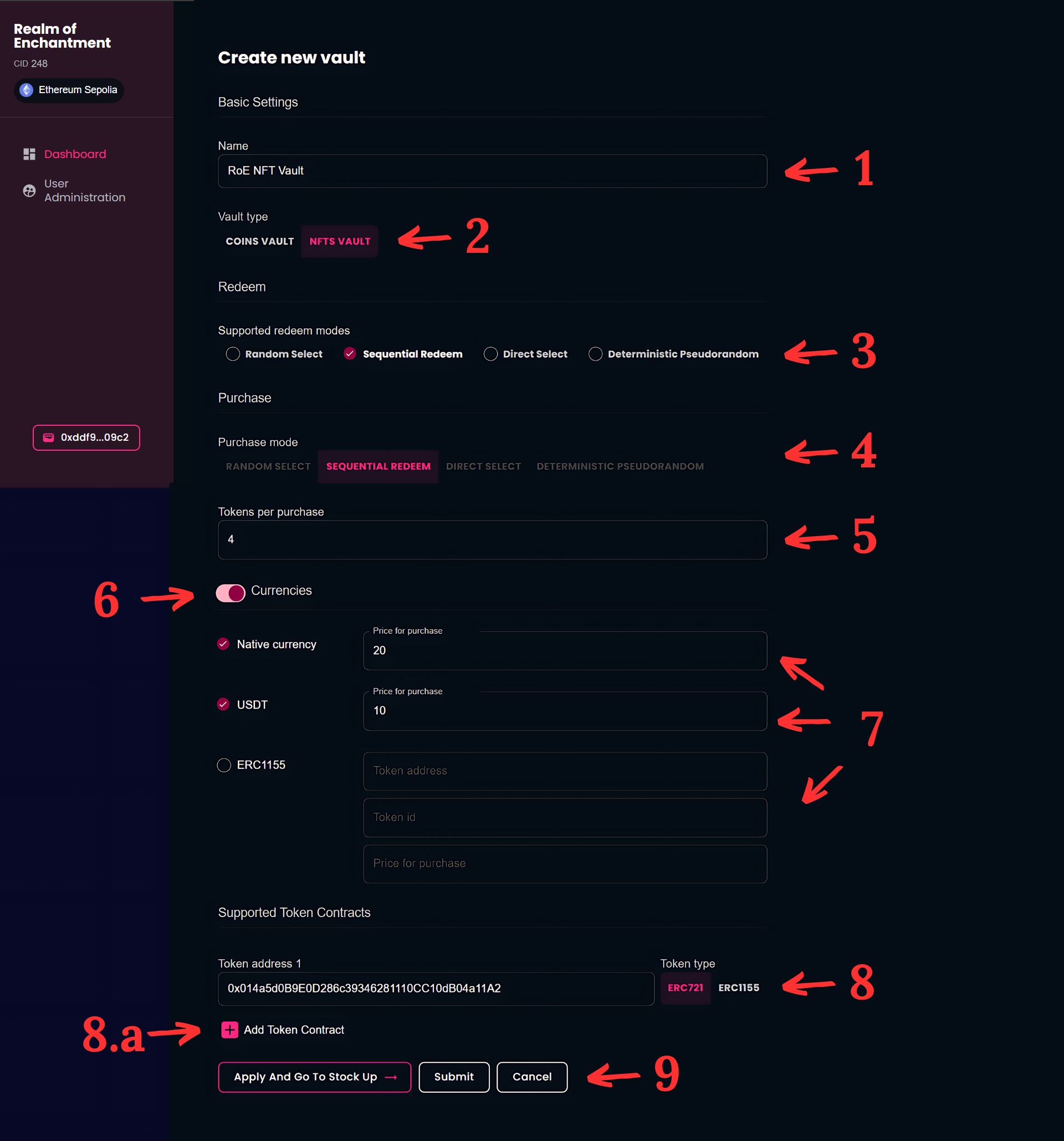
- Provide a name for the shop.
- Select the "NFTs shop" for Shop type.
- Select "Sequential redeem" from Supported redeem modes dropdown. This means that when a user can have an NFT card from the Shop, the next item in line will be redeemed.
- Select "Sequential redeem" from Purchase mode dropdown. This means that when a user can purchase an NFT card from the Shop, the next item in line will be redeemed.
- Define the number of tokens per puchase value.
- Activate the "Currencies" button.
- Select the payment method(s) (Native currency, USDT and/or ERC1155) and set the price.
- Enter the token's contract address.
8.a Click on the "+" button to add new Token addresses. - After everything is set up, click on the "Submit" button.
¶ Create shop with direct select:
- Provide a name for the shop.
- Select the "NFTs shop" for Shop type.
- Select "Direct select".
- Select "Direct select" from Purchase mode dropdown. This means that when a user can purchase an NFT card from the Shop, the user is allowed to pick the exact item they want.
- Activate the "Currencies" button.
- Select the payment method (Native currency, USDT and/or ERC1155) and set the price.
- Enter the token's contract address.
7.a Click on the "+" button to add a new Token address. - After everything is set up, click on the "Submit" button.

¶ Create shop with deterministic pseudorandom:
- Provide a name for the shop.
- Select the "NFTs shop" for Shop type.
- Select "Deterministic pseudorandom".
- Select "Deterministic pseudorandom" from Purchase mode dropdown. From the user point of view this means that when a user can purchase an NFT card from the Shop, that card will be selected randomly for the user.
- Define the Pseudorandom interval value.
- Activate the "Currencies" button.
- Select the payment method (Native currency, USDT and/or ERC1155) and set the price.
- Enter the token's contract address.
8.a Click on the "+" button to add a new Token address. - After everything is set up, click on the "Submit" button.
¶ Step 3
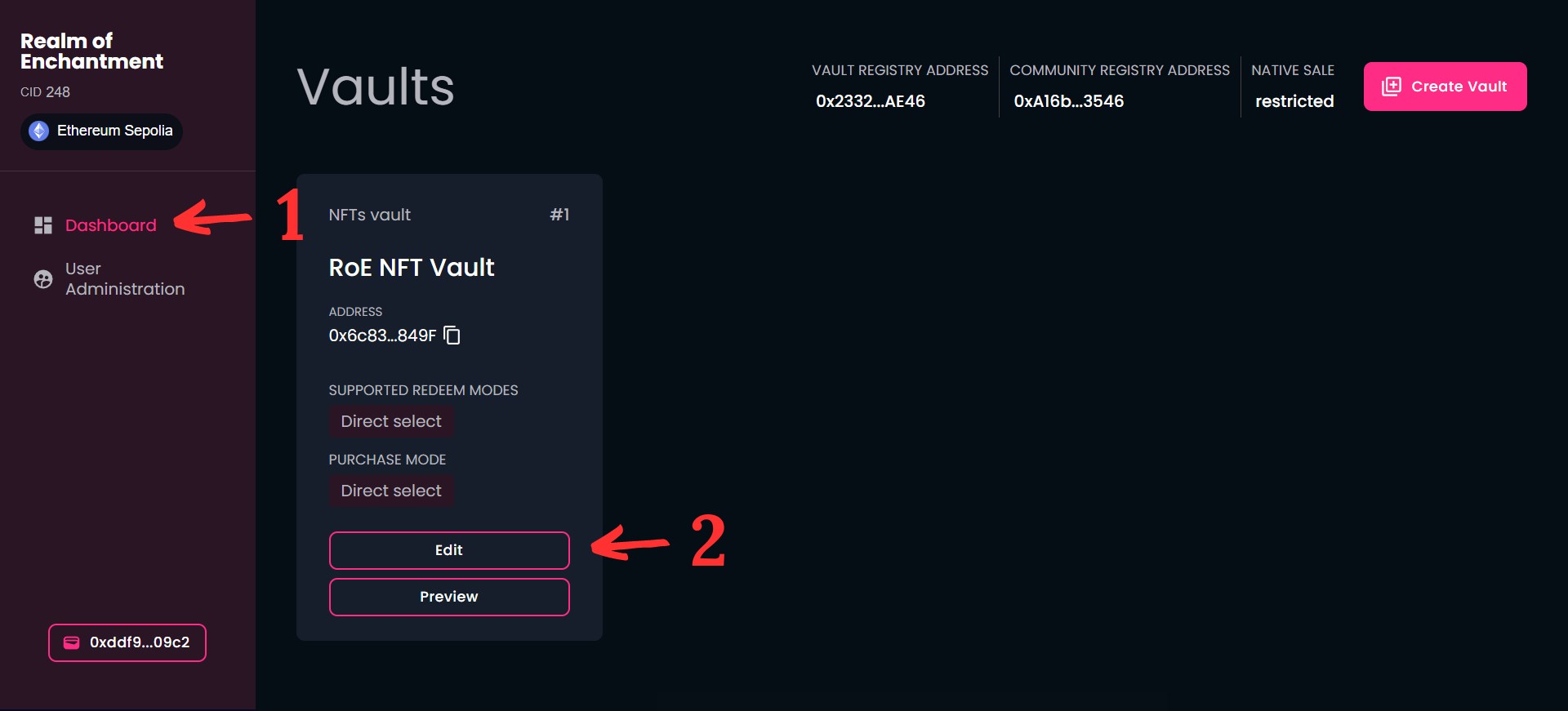
- Select the “Dashboard” menu to access the Shops screen.
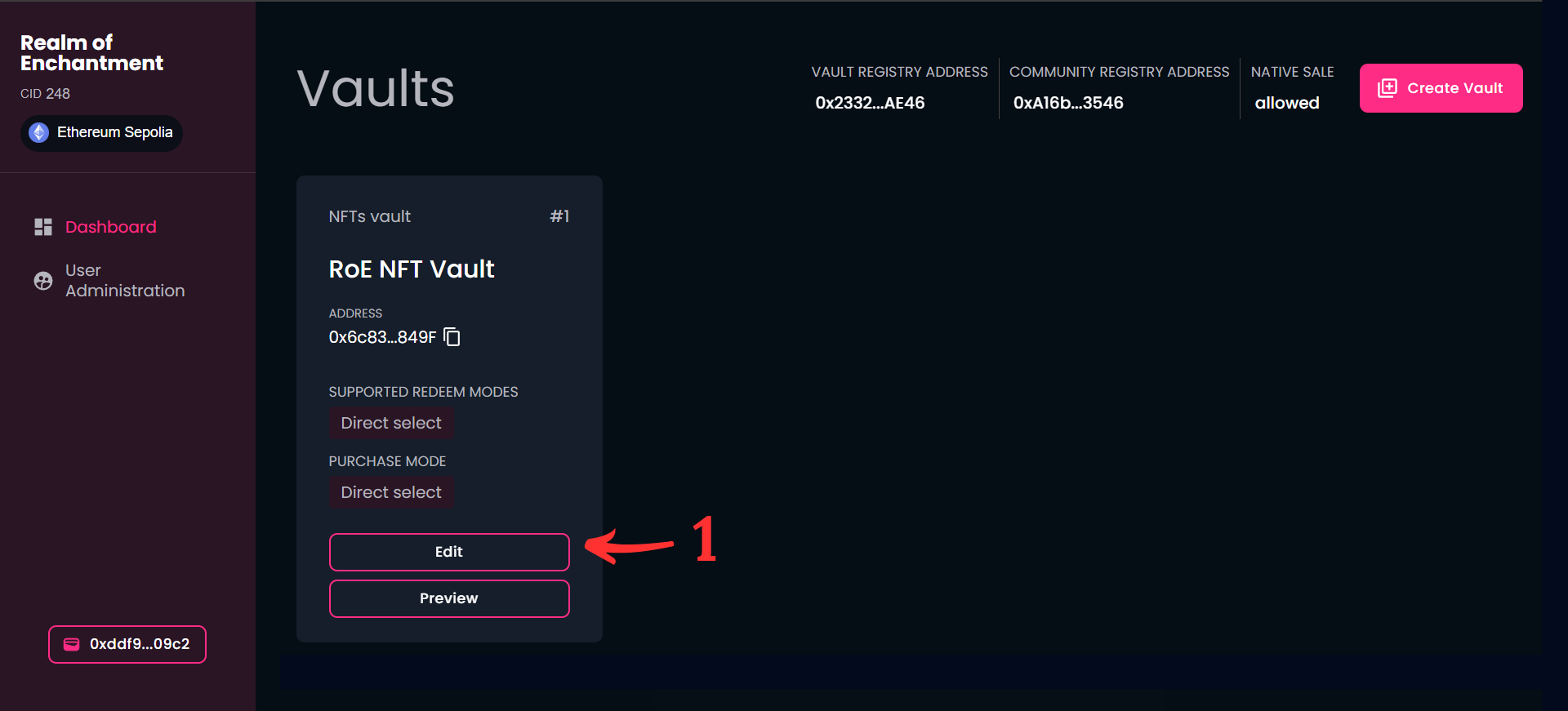
- Click on the card's "Edit" button.
¶ Step 4
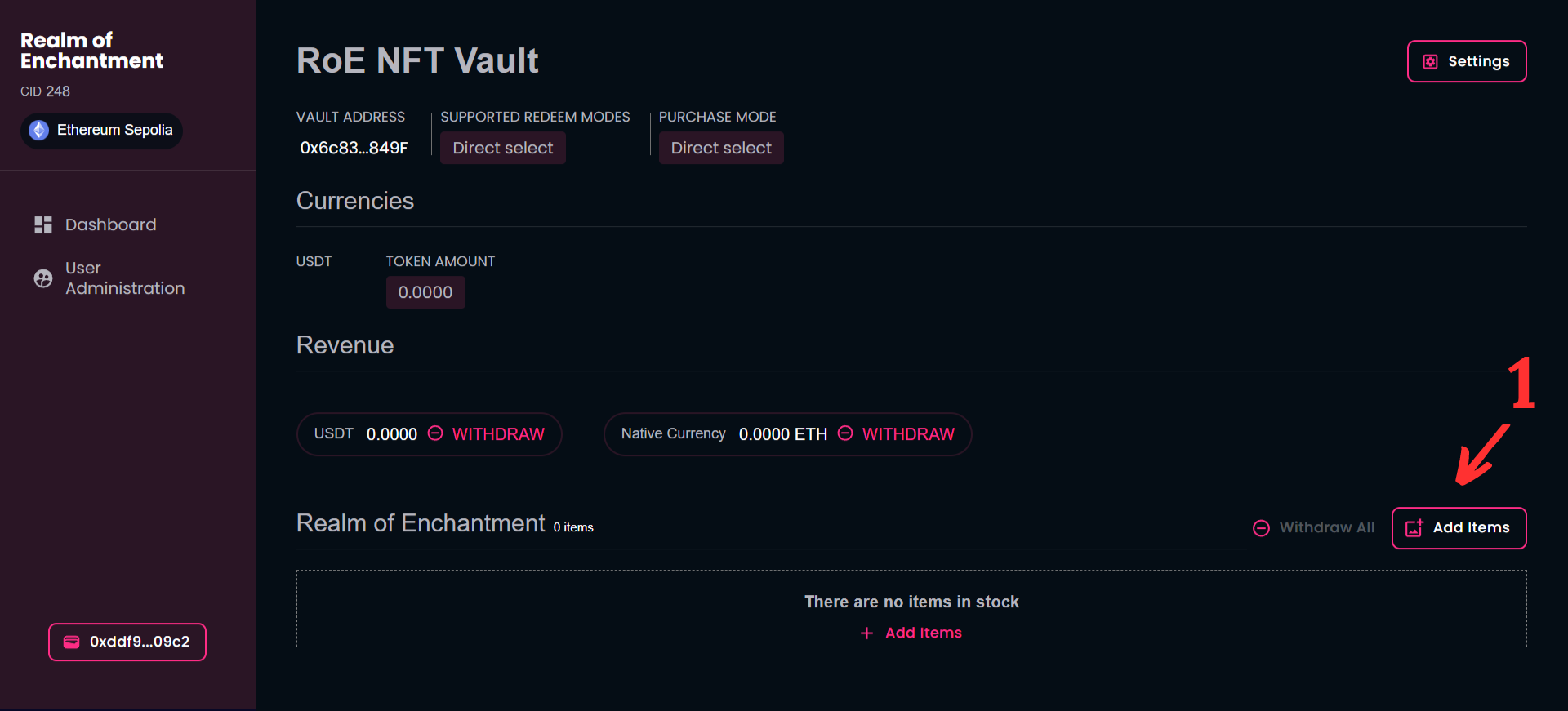
- Click on the "Add Items" button to deposit NFTs in the shop.
¶ Step 5
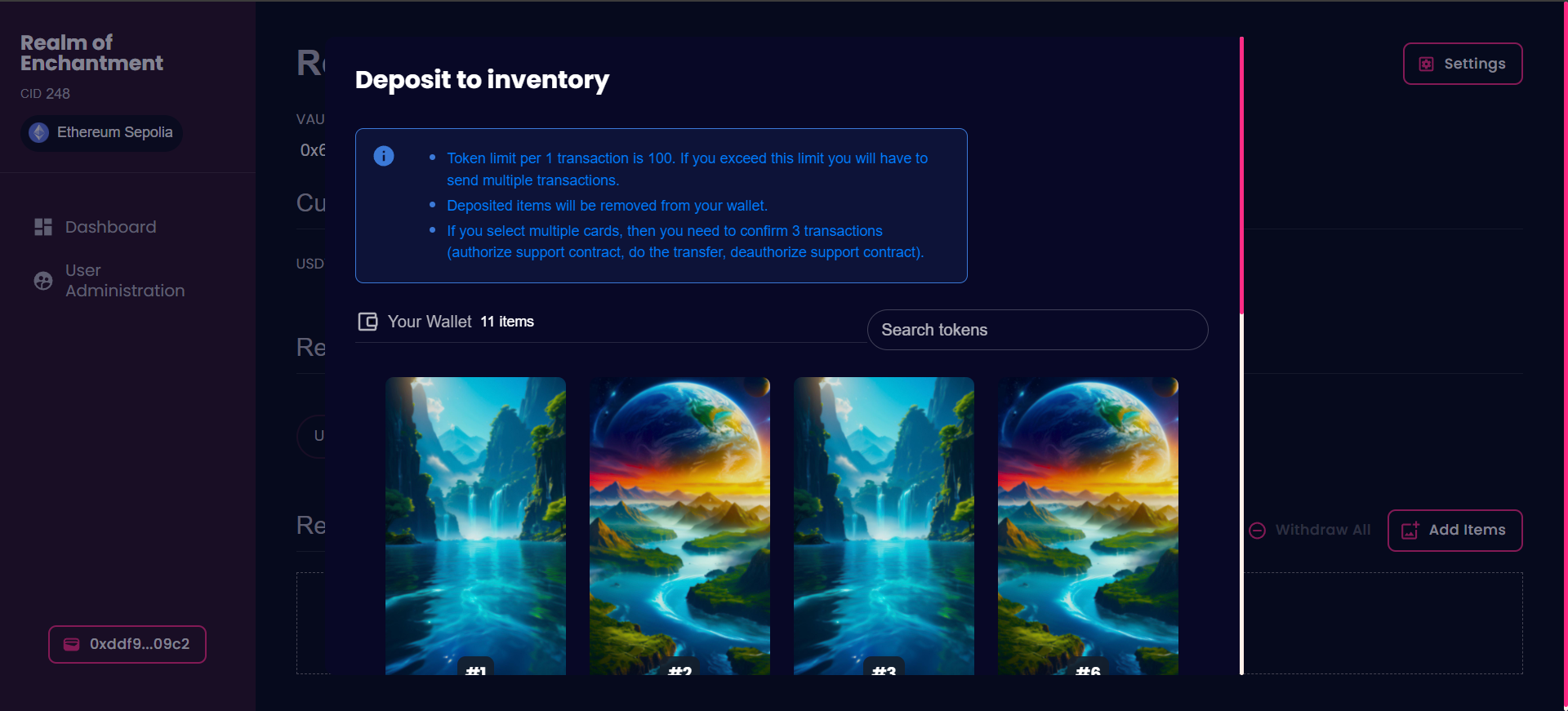
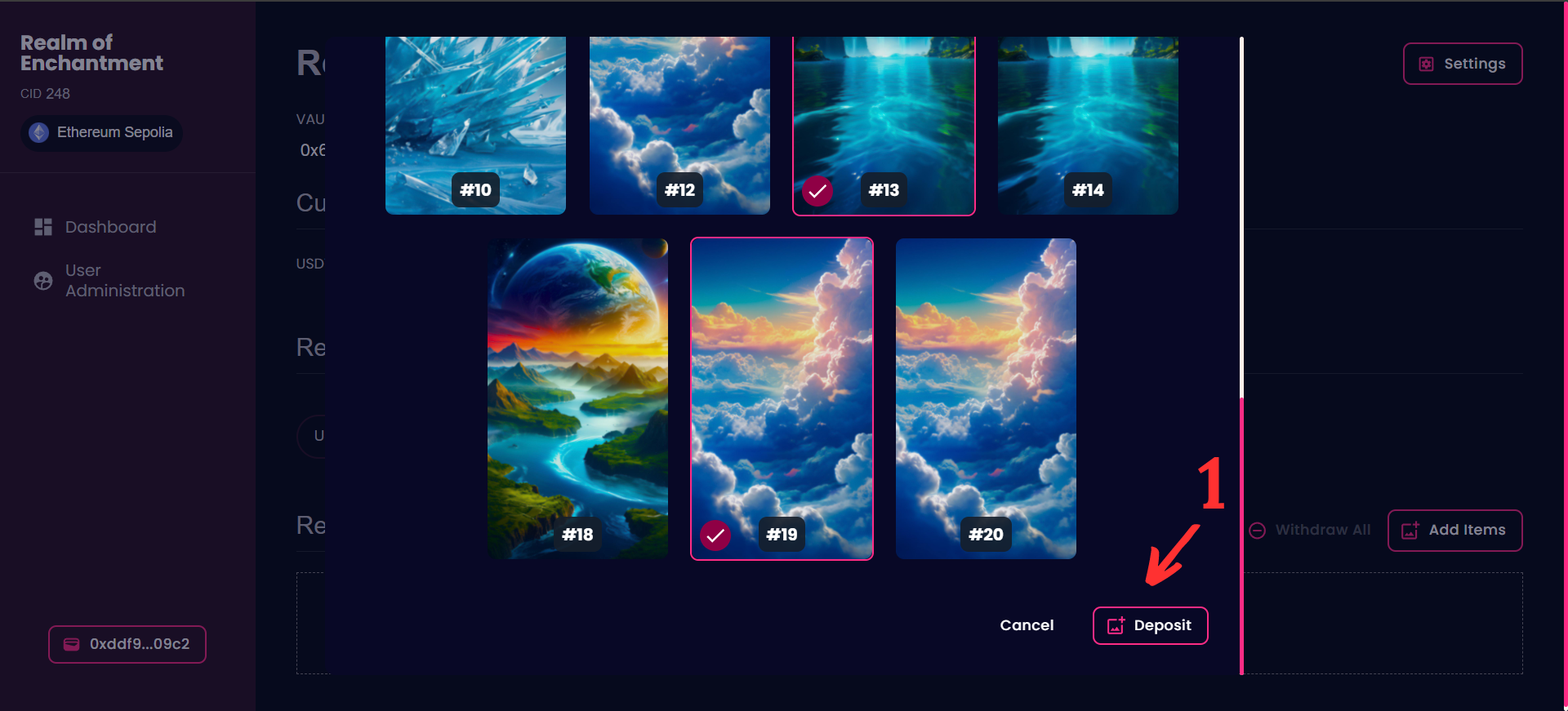
- After you clicked the "Add Items" button you will see this screen (essentially the NFTs in your wallet) where you can select which NFTs you want to import to this shop.
- You can select an NFT by simply clicking on it. When it is selected a border will appear.
- When you have finished selecting the NFTs click on the "Deposit" button on the botton of the page. In this way, the selected NFTs will be imported from your wallet into the newly created shop.
¶ Step 6
- The NFTs are added in the shop and the shop is ready to use.

¶ NFT Withdraw
¶ Step 1
- Click on the "Edit" button on the NFT Shop card.
¶ Step 2
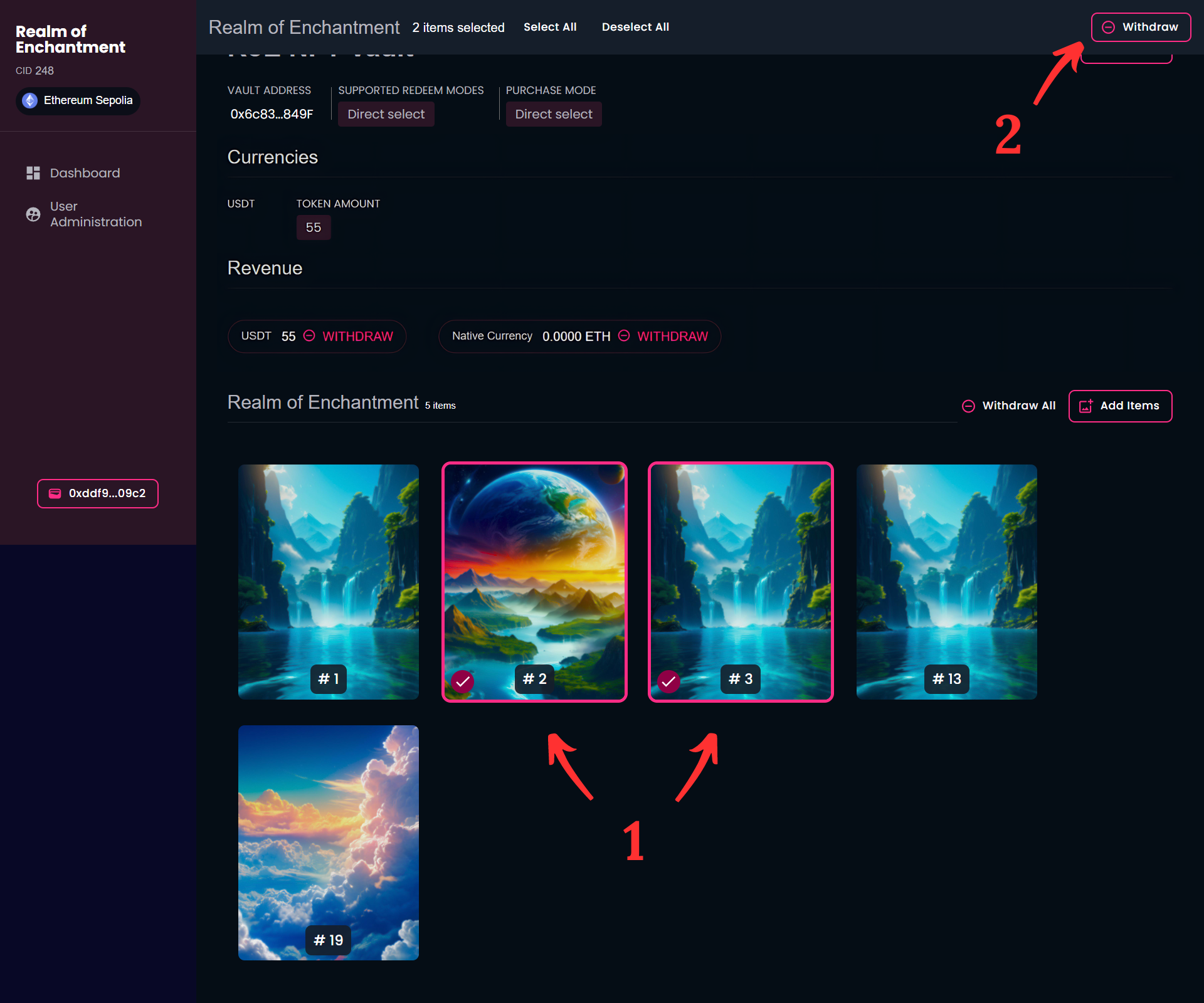
- Select the cards what you wish to withdraw fron Shop.
- Click on the "Withdraw" button.